

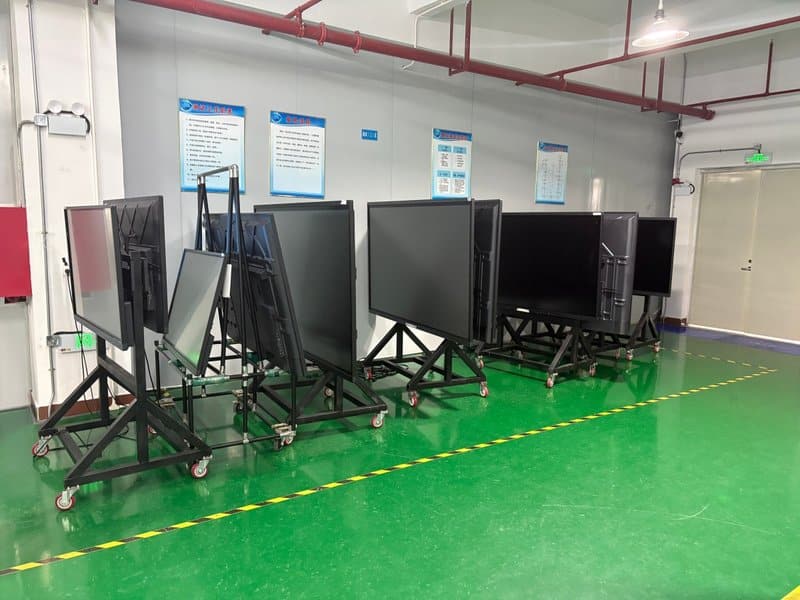

Deploying a professional Conference Interactive Display Troubleshooting provides modern collaborative spaces with an advanced digital presentation hub. With the rapid adoption of intelligent commercial office hardware, conference all-in-one interactive displays (smart conference panels / IFPDs) have become essential collaboration hubs in enterprise boardrooms, corporate training suites, open collaboration areas, and hybrid meeting spaces. Combining high-definition visual display, intuitive multi-touch interaction, high-fidelity audio, and integrated PC processing into one unified system, conference all-in-one machines greatly streamline meeting workflows. However, in the course of everyday operations, users may occasionally encounter boot failures, abnormal display output, audio playback issues, or touch calibration inaccuracies.
Mastering systematic troubleshooting techniques enables IT administrators and meeting facilitators to swiftly resolve common technical glitches, restore normal meeting operations, and minimize costly downtime.
Conference Interactive Display Troubleshooting: 01 What to Do If the Conference All-in-One Display Fails to Boot or Powers Down Abnormally
If the conference all-in-one display cannot start normally, or if it unexpectedly shuts down or enters sleep mode during active use, follow these systematic diagnostic steps:
Solutions:
Check Timer and Power-Saving Settings: Verify whether scheduled auto-shutdown, automatic sleep, or eco power-saving timers are enabled in the system menu, and confirm that current energy configurations align with actual meeting duration requirements.
Verify Input Signal Channel: Inspect active video input sources. If the display has an automated “no-signal auto-standby” or “auto-power-off” feature enabled, losing the video input signal from a connected PC will trigger automatic shutdown.
Inspect Power Cabling and Electrical Supply: Ensure that the AC power cord is securely plugged into both the display inlet and the electrical wall receptacle, and verify that the power outlet delivers stable, uninterrupted voltage.
Check Hardware Switch and Status Indicators: If the display still fails to boot, consult the user manual to verify that the primary AC power rocker switch is engaged and observe the LED status indicator color. If power is supplied but the unit remains unresponsive, contact certified technical support for advanced electrical diagnosis.
02 What to Do If the Power Indicator LED Fails to Light Up
If the front status indicator LED does not illuminate, the root cause typically involves an interrupted power supply, an unswitched main power circuit, or internal power module protection.
Solutions:
Inspect Power Cord Integrity: Check that the power cable is firmly seated in the wall socket and the machine’s AC power socket, ensuring neither end has worked loose.
Verify Main Power Switches: Ensure the primary AC rocker switch (usually located on the bottom or rear panel) is toggled to the “ON” position. Check whether there is an additional front-panel standby button that needs to be pressed.
Test Wall Outlet with Known Devices: Plug the power cord into a verified functional electrical outlet to rule out upstream circuit breaker trips or faulty power strips. Never attempt to disassemble the chassis or replace internal fuses independently.
Contact Technical Support: If power input is verified stable yet the status LED remains completely unlit, escalate the unit to qualified technical support for internal power board diagnostics.
03 How to Resolve Computer Display Anomalies and Video Signal Glitches
When connecting the conference all-in-one display to an internal OPS computer module or an external laptop, issues such as color tinting, color dropouts, partial display cutoffs, or image overscanning beyond screen borders may arise.
Solutions:
Color Distortion or Missing Color Channels: Inspect video transmission cables (such as HDMI, Type-C, or DisplayPort) to verify they are securely seated and free from bent pins or frayed sheathing. Test with a verified replacement cable or toggle to an alternative input port when possible.
Image Does Not Fill the Screen or Aspect Ratio Distorted: Check the output resolution and refresh rate settings on the connected computer to ensure they match the native resolution (e.g., 3840×2160 @ 60Hz) of the display panel. Verify that display scaling is set to “Recommended” and aspect ratio is set to 16:9.
Image Position Shifted or Overscanned: Adjust the computer’s graphics control panel settings (checking GPU scaling and overscan options) and review the display’s internal aspect ratio menu (e.g., set to “Just Scan”, “Dot by Dot”, or “Full”).
No Picture from External Computer: Verify that the conference panel has been switched to the correct input channel (e.g., HDMI 1, HDMI 2, or Type-C) and confirm using Windows key + P that the computer’s display output mode is set to “Duplicate” or “Extend”.
Cross-Device Verification: If display abnormalities persist after adjustments, connect a different laptop or video source to isolate whether the anomaly originates from the computer graphics card, the interconnecting cable, or the commercial display panel.
04 What to Do If the Conference All-in-One Machine Produces No Sound
Audio output failures generally stem from software volume settings, incorrect default audio device selection, or loose physical audio connections.
Solutions:
Check System Volume and Mute Status: Verify volume levels on both the conference display’s on-screen menu and the connected computer’s operating system, ensuring neither is muted.
Select the Correct Audio Output Endpoint: In the operating system’s sound control panel, confirm that the digital audio output (e.g., “HDMI Audio”, the display model name, or the USB audio endpoint) is designated as the default playback device.
Inspect Audio Cabling and External Amplifiers: If using 3.5mm analog audio cables or external conference room soundbars, confirm that all audio interconnects are firmly plugged in, external amplifiers are powered on, and the correct amplifier input channel is selected.
Test Audio Source and Media Player: Play alternative audio/video files or switch software applications to determine whether the audio failure is isolated to a specific conference app or media format.
Review Drivers and System Sound Services: If sound cannot be restored, verify audio driver status in Device Manager and check underlying hardware functionality.
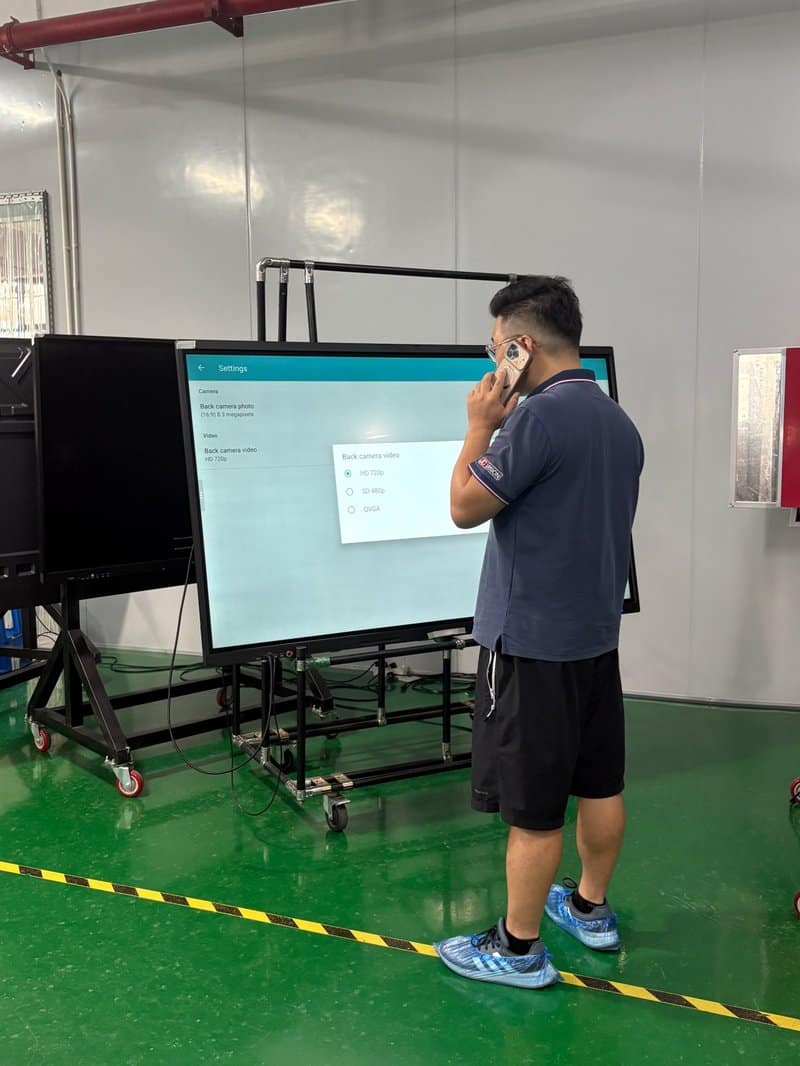
05 How to Address System Lag, Frame Drops, and Sluggish Touch Operation
When applications respond sluggishly, 4K video playback stutters, or touch input displays noticeable latency, the issue is commonly tied to resource exhaustion, excessive file overhead, network bandwidth constraints, or insufficient computing hardware specs.
Solutions:
Close Superfluous Background Applications: Shut down non-essential applications running in the background to free up system memory (RAM) and CPU resources for core presentation tasks.
Clean Temporary Files and System Cache: Clear accumulated temporary cache files and unnecessary large downloads using standard OS utilities, avoiding the accidental deletion of vital system files or meeting archives.
Check Video Codec and Bitrate Compatibility: Verify whether local video files exceed the hardware decoding capabilities of the internal media player (such as extremely high-bitrate raw video files).
Inspect Network Bandwidth: If latency or frame drops occur during cloud video conferences (e.g., Zoom, Teams, Voov), check local Wi-Fi signal strength or switch to a wired Gigabit Ethernet LAN connection.
Reboot the System: If the system has been running uninterrupted for a prolonged period, save all work, execute a clean reboot according to the user manual, and observe whether responsiveness improves.
Hardware Configuration Evaluation: If system sluggishness persists consistently across basic tasks, evaluate whether the existing hardware configuration (RAM, storage, processor generation) meets current organizational software demands.
06 Troubleshooting Inaccurate Touch Positioning and Multi-Touch Offset
Inaccurate touch positioning degrades whiteboard handwriting, annotation accuracy, gesture controls, and multi-user collaboration. When touch misalignment occurs, inspect the glass surface and touch calibration parameters.
Solutions:
Clean the Display Glass and Bezel: Wipe down the entire glass surface and the perimeter infrared/capacitive sensor frame, ensuring dust, tape residue, fingerprints, or foreign objects are not interfering with touch detection.
Standardize Operating Gestures: Ensure fingers or passive/active styluses are held naturally and firmly against the screen surface. Unless specifically required by product specifications, use standard operating angles.
Perform Touch Calibration: Open the system’s touch calibration utility and follow the on-screen calibration crosshairs precisely in sequence, avoiding touching other screen areas during the process.
Inspect Touch USB Interconnects: When operating an external PC, ensure the secondary Touch-USB cable is securely connected between the PC and the display’s dedicated Touch-USB port, and verify that touch drivers are functioning without errors.
Inspect Sensor Hardware: If localized screen areas remain entirely unresponsive to touch, or if severe coordinate drift persists after calibration, contact certified technical support to inspect touch frame hardware and underlying interface ribbons.
07 Daily Best Practices for ZXTLCD Conference All-in-One Interactive Displays
ZXTLCD commercial conference all-in-one displays can be flexibly tailored to the demanding requirements of corporate boardrooms, interactive training centers, and collaborative workspace environments. Units seamlessly integrate commercial-grade display panels, high-precision multi-touch frames, integrated stereo acoustics, and expandable PC modules (OPS), with exact hardware specifications tailored to each product tier.
To minimize everyday operational failures, IT personnel should adopt several proactive maintenance practices: verify power, signal inputs, audio playback, and touch responsiveness prior to major meetings; routinely inspect physical cabling and glass panel condition; deploy certified operating system and driver updates in a planned manner; and adhere strictly to professional cleaning and ventilation protocols.
Should persistent or complex hardware faults occur, document the exact failure symptoms, status LED behavior, active video input sources, and attempted remediation steps before contacting certified service engineers. Avoid unauthorized chassis disassembly or unverified electrical modifications.
Mastering these systematic diagnostic and resolution techniques empowers enterprise users to resolve everyday equipment issues swiftly, ensuring high hardware availability and exceptional operational efficiency. Investing in high-performance, intuitively operable, and easily maintainable conference all-in-one displays forms the cornerstone of a truly modern, productive digital collaboration workspace. In summary, choosing a reliable Conference Interactive Display Troubleshooting solution enhances team engagement, streamlines video conferencing, and elevates overall meeting productivity.
Looking for customized Conference Interactive Display Troubleshooting hardware, interactive flat panels (IFPD), or OEM/ODM smart board solutions? Feel free to contact the ZXTLCD engineering team for free consultations, product specifications, and tailored volume pricing.