


Interactive Display Maintenance Mistakes: Are 90 Percent of People Maintaining Smart Conference All-in-One Displays Wrongly?
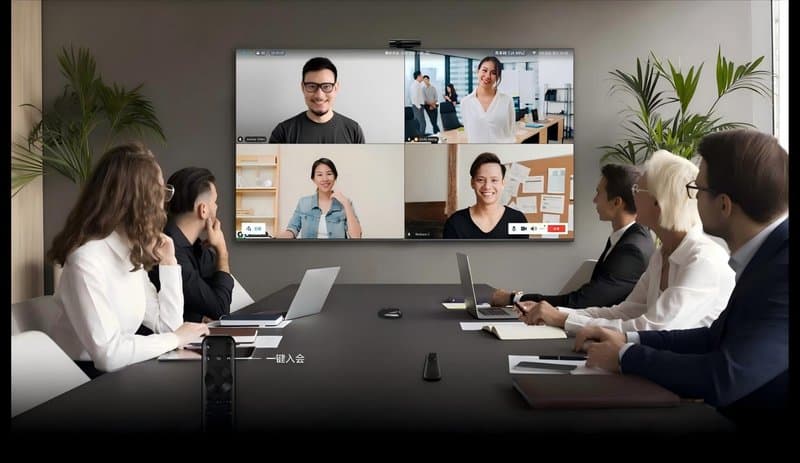
Deploying a professional Interactive Display Maintenance Mistakes provides modern collaborative spaces with an advanced digital presentation hub. Smart conference all-in-one machines integrate high-definition display, interactive touch, conference presentations, and multimedia collaboration into a unified terminal, bringing tremendous convenience to daily corporate communication and remote video conferencing. During routine operation, beyond mastering basic functions, facilities teams must pay close attention to screen cleaning, thermal ventilation, connector port preservation, and operating system maintenance.
If these critical maintenance details are neglected over extended periods, devices can suffer from stubborn surface smudges, loose physical ports, sluggish performance, or unexpected hardware failures. Mastering the following maintenance practices will preserve the optimal operating condition of your smart conference display and prevent unnecessary premature wear.
1. Avoid Direct Sunlight Exposure
The ambient environment in which an interactive conference display is installed directly impacts its operating stability and lifespan. Sustained exposure to direct sunlight not only spikes the surface temperature of the optical screen but also induces harsh glare, degrading visual legibility.
Correct Maintenance Practice: Install the display in an area shielded from direct sunlight whenever possible, utilizing curtains or blinds to block intense exterior rays. Additionally, ensure adequate air circulation around the chassis and never obstruct cooling vents.
Operating temperature thresholds must comply with product specification sheets, as tolerances vary across hardware configurations. Unless explicitly certified and engineered for outdoor environments, standard indoor conference all-in-one machines should never be deployed in spaces exposed to direct sun, rain, or extreme ambient temperatures.
2. Avoid Damp and Humid Environments
The interior chassis of a smart conference machine houses sensitive display controllers, touch digitization boards, power supplies, and processor motherboards. Prolonged operation in humid environments accelerates connector corrosion, electrical leakage, and internal condensation.
Correct Maintenance Practice: Position the device in a dry, climate-controlled indoor environment with good ventilation, far from water dispensers, steam vents, humidifiers, or locations prone to condensation. When cleaning the chassis, strictly prevent liquid droplets from entering interface ports, ventilation slots, or chassis seams.
If a device is transported from cold outdoor storage into a warm, humid room, allow it to acclimate according to manufacturer instructions before applying electrical power, ensuring internal condensation has fully evaporated.
3. Never Wipe Screens with Overly Wet Cloths
When cleaning an all-in-one conference machine, using an overly damp cloth allows excess moisture to seep along glass edges, perimeter bezels, or I/O ports into the internal electronics, sharply increasing the risk of short circuits and board corrosion.
Correct Maintenance Practice: Prior to cleaning, follow operating manuals to shut down the system cleanly and disconnect mains power where appropriate. Use a soft, lint-free microfiber cloth that is only slightly damp—never dripping wet. Never spray liquid cleaners directly onto the screen glass, and never allow liquids to pool near perimeter bezels or connection ports.
For stubborn dirt or greasy smudges, use specialized display cleaning fluids approved by the manufacturer and follow instructions meticulously.
4. Clean the Chassis Enclosure Properly
Chassis frames, buttons, and rear covers accumulate ambient dust, fingerprints, and daily office smudges. Using harsh chemical solvents can strip decorative surface finishes, cause plastic discoloration, or leave corrosive chemical residues.
Correct Maintenance Practice: For routine maintenance, wipe the chassis exterior with a soft dry cloth or a slightly damp microfiber towel. When addressing stubborn stains, verify chemical compatibility before application, strictly avoiding highly corrosive, solvent-heavy, or abrasive household cleansers.
After cleaning, ensure no residual moisture remains on the outer casing, paying particular attention to perimeter interfaces and assembly seams.
5. Use Ultra-Soft Cleaning Cloths on Display Surfaces
The front glass of an all-in-one conference display functions simultaneously as an optical viewing window and an active touch-sensing surface. Coarse cleaning rags, abrasive paper towels, or cleaners containing scrubbing micro-beads will scratch optical anti-glare coatings over repeated cleanings.
Correct Maintenance Practice: Gently wipe the screen using an ultra-soft, lint-free optical microfiber cloth without applying excessive mechanical pressure. For smudges and greasy fingerprints, follow cleaning workflows recommended in manufacturer user guides.
Never apply unverified solvents, polishing compounds, or direct liquid sprays. If the screen glass features specialized treatments (such as anti-glare AG or anti-fingerprint AF coatings), strictly observe manufacturer cleaning protocols.
6. Follow Standard Shutdown Protocols to Prevent Hardware Wear
Smart conference all-in-one machines must execute proper operating system shutdown routines, file writes, and background housekeeping tasks. Abruptly yanking the mains power plug while the machine is running risks losing unsaved conference notes, corrupting system files, or damaging SSD storage partitions.
Correct Maintenance Practice: When a meeting concludes, follow the prescribed software sequence to shut down the operating system gracefully and wait for the system power light to turn off. Never force power cuts simply to make the machine “rest,” and never disconnect power cables during firmware updates or file writes.
If equipment must operate continuously for extended durations, verify that its thermal design and duty-cycle ratings support 24/7 or continuous duty. For units remaining idle over holidays or long periods, execute standard shutdowns and disconnect main power per manufacturer guidelines.
7. Clean Dust Regularly to Maintain Efficient Heat Dissipation
Airborne dust inevitably accumulates around chassis ventilation grilles, cooling fans, and interface ports. Blocked vents restrict internal airflow, causing operating temperatures to spike and triggering thermal throttling.
Correct Maintenance Practice: Periodically inspect screen borders, chassis exteriors, port clusters, and cooling vents, clearing away visible dust with soft electrostatic brushes. Take care not to push accumulated dust inward into internal electronics, and avoid using industrial compressed air jets that exceed safe pressure thresholds.
If a device exhibits abnormal chassis heat, loud fan rattles, or sudden thermal shutdowns, inspect the ventilation environment immediately and consult qualified service engineers if necessary.
8. Use USB Ports Carefully to Prevent Connector Damage
Smart conference machines rely on USB interfaces for touch signal passthrough, external PC connectivity, and peripheral devices. Forcible, misaligned, or rough plugging and unplugging will loosen port sockets, bend internal contact pins, and cause intermittent touch or data transmission dropouts.
Correct Maintenance Practice: When plugging or unplugging USB cables, grip the connector housing firmly—never yank on the flexible cable wire. Align connector orientations carefully before inserting, avoiding brute-force insertion. For laptops requiring frequent docking, consider dedicated dongles or front-facing extension ports to reduce wear on primary chassis connectors.
If touch input becomes unresponsive, connected peripherals fail to enumerate, or signals drop intermittently, inspect cable continuity, socket pins, and operating system drivers rather than repeatedly jamming connectors.
9. Periodically Audit System Storage and Software Health
During everyday operation, smart conference machines continuously generate application caches, temporary files, and system logs. Insufficient available storage space or conflicting background apps can cause sluggish system boot-up and delayed app responsiveness.
Correct Maintenance Practice: Regularly audit available storage capacity according to the device’s operating system (Android or Windows OPS), clearing temporary cache files and obsolete app data. Prior to deletion, verify file identities to prevent accidental purging of vital conference records, system libraries, or configuration files.
Additionally, monitor official firmware and software patch releases, applying updates only after confirming software compatibility and completing necessary data backups. If a device experiences chronic lag or app crashes, investigate software compatibility, network latency, and OS health rather than relying exclusively on memory cache cleaning.
Conclusion: Sound Maintenance Habits Ensure Equipment Longevity
Maintaining a smart conference all-in-one machine is straightforward when grounded in sound operational discipline: enforcing proper screen cleaning, maintaining ideal ambient environments, safeguarding physical ports, and executing graceful shutdowns and software housekeeping.
These foundational principles apply equally to diverse commercial touch display terminals; however, specific maintenance protocols should always align with individual product engineering manuals.
ZXTLCD provides commercial and conference display solutions. By pairing equipment configurations with room environments and operational workflows, and instituting standardized maintenance routines, organizations can safeguard system stability—delivering dependable visual collaboration support for corporate meetings, presentations, and remote teamwork. In summary, choosing a reliable Interactive Display Maintenance Mistakes solution enhances team engagement, streamlines video conferencing, and elevates overall meeting productivity.
Looking for customized Interactive Display Maintenance Mistakes hardware, interactive flat panels (IFPD), or OEM/ODM smart board solutions? Feel free to contact the ZXTLCD engineering team for free consultations, product specifications, and tailored volume pricing.