

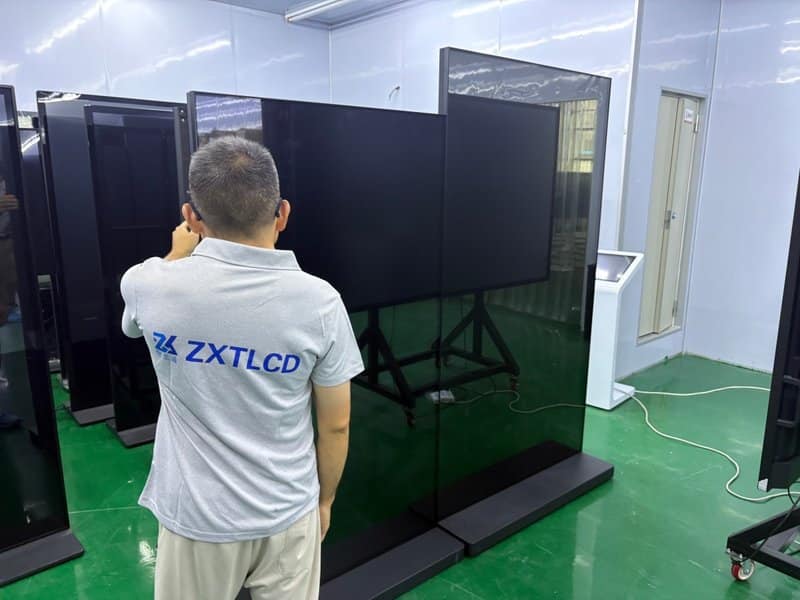

Deploying a professional Interactive Flat Panel Screen Issues provides modern collaborative spaces with an advanced digital presentation hub. Conference all-in-one interactive displays integrate large-format visual presentation, multi-touch annotation, and rich video conferencing collaboration into a sleek commercial-grade form factor. They are widely utilized across corporate conference rooms, executive boardrooms, training centers, and commercial exhibition spaces. During long-term daily operations, should issues such as a complete white screen, abnormal color tinting, or missing primary color channels occur, presentation readability, video playback, and scheduled business meetings can be severely impacted.
Crucially, an abnormal display screen does not automatically signify a shattered or defective LCD panel. In many instances, the root cause lies within video signal transmission cables, incorrect input channel selections, loose internal ribbon cables, or display driving circuit protection. When troubleshooting screen anomalies, IT personnel and operators should always begin with external interconnects and system software parameters before determining whether certified hardware repair is required.
Interactive Flat Panel Screen Issues: 1. What to Do When a Conference All-in-One Machine Displays a White Screen
A “white screen” condition occurs when the display powers on, but the panel illuminates entirely white or near-white, failing to render the operating system desktop, input signals, or system menus. Common causes include video signal delivery failures, internal timing controller (T-CON) ribbon disconnection, display driving circuit faults, or panel cell anomalies.
Verify Device Operating Status and Signal Input
If the conference all-in-one machine is connected to an external PC or video source, first confirm whether the computer has booted up completely and verify that the display is set to the correct active input channel.
Inspect external video transmission cables to ensure they are securely fastened, and toggle between other supported input channels (such as HDMI 1, HDMI 2, or Type-C). If the unit features an integrated Android operating system, check whether the native home menu or on-screen display (OSD) settings menu can be summoned.
If the white screen occurs exclusively on one external video channel while the native system menus and alternative input sources display perfectly, the root cause is isolated to the external computer, video cable, or that specific input port.
Identify Internal Display Hardware Anomalies
If the display boots into an immediate, persistent white screen across all channels—and native OSD system menus fail to appear—the fault likely resides within internal video signal processing paths, T-CON boards, driver power supplies, or the LCD panel itself.
A modern commercial LCD display system relies on synchronized cooperation between power inverter boards, mainboards, timing controllers, and gate/source driver ICs. An electrical breakdown in any single component can disrupt normal liquid crystal polarization. A white screen alone cannot pinpoint the precise defective IC; comprehensive diagnostic instruments are required to isolate the fault.
Avoid Unauthorized Disassembly or Internal Cable Reseating
The internal architecture of a commercial interactive display contains delicate flexible flat cables (FFC/LVDS/V-by-One), sensitive high-voltage power sections, and fragile glass panel bonds. Improper manual handling easily damages gold fingers, misaligns connector latches, or shorts internal circuitry, transforming a minor contact fault into an irreparable panel breakdown.
Consequently, non-certified personnel must never dismantle the chassis while the unit is plugged in, nor attempt to remove the glass panel, disassemble driver boards, or reseat internal ribbons. When internal hardware failure is suspected, escalate the equipment to professional manufacturer-authorized service technicians.
2. Troubleshooting Screen Discoloration and Missing Color Channels
Screen discoloration occurs when displayed content takes on an overall abnormal hue (such as heavy pink, cyan, green, or yellow tints). Missing color channels occur when one primary RGB color component drops out, resulting in unnatural color clipping and severe image distortion.
These color anomalies commonly stem from damaged video interconnects, bent connector pins, mismatched display color space settings, or driving board degradation.
Inspect External Video Cables and Terminals
When the conference machine is connected to a computer via legacy analog VGA, HDMI, or DisplayPort, first verify that both ends of the cable are plugged in firmly without cocking or loose mounting thumbscrews.
On analog VGA connections, missing red, green, or blue channels or heavy color tinting almost always indicates bent, recessed, or broken connector pins. Power down the connected laptop, examine the connector pins carefully, and test with a verified high-grade replacement cable.
On digital connections like HDMI and Type-C, check that connectors are fully seated and confirm that the computer’s graphics output parameters (RGB Full vs. YCbCr 4:4:4 / 4:2:2) align with the display’s color space requirements.
Test External Signal Sources and Display Settings
Connect an alternative verified laptop or video generator to the display to see if vibrant, accurate color rendition is restored. If the replacement device displays normal colors, the fault originated from the original laptop’s GPU color calibration, graphic output drivers, or physical video port.
If the conference display features multiple video inputs, switch between inputs to compare color performance. Step-by-step cross-testing across sources, cables, and ports efficiently narrows down the point of failure.
Assess the Need for Internal Display Circuit Inspection
If the screen continues to show heavy color distortion or missing channels despite verified cables, multiple test laptops, and factory reset display color profiles, internal hardware issues must be evaluated.
Loose internal LVDS or V-by-One data lines, degraded T-CON color processing chips, or damaged gamma correction ICs can cause incomplete color reproduction. However, visual symptoms alone are insufficient to confirm the exact component failure. Such diagnostics should only be executed by qualified service technicians adhering to standardized repair guidelines.
Avoid Replacing Driver Boards Without Prior Diagnostic Confirmation
A color or visual abnormality does not automatically prove that the main display driver board has failed. Replacing expensive circuit boards without systematic electrical diagnosis often fails to solve the root problem and needlessly inflates maintenance expenses.
Best practice mandates eliminating external cabling, video sources, and firmware configurations first, allowing certified repair technicians to measure test point voltages and pinpoint the exact failing component.
3. Standard Troubleshooting Sequence for Conference Display Screen Faults
When encountering visual screen abnormalities, follow this logical “outside-in” diagnostic sequence:
1. Verify Electrical Power and Boot Sequence: Confirm that the display powers on normally and note the color and blink patterns of all status indicator LEDs.
2. Check System OSD and Native Menus: Attempt to summon the display’s native OSD menu or switch input sources to determine whether the visual fault is global or confined to a specific input.
3. Inspect External Physical Connections: Verify that video transmission cables and interface jacks are firmly seated, undamaged, and free of bent pins.
4. Perform Cross-Testing with Verified Cables and Computers: Swap in known-good cables and alternative laptops to observe whether the symptom changes.
5. Escalate to Professional Service: If screen anomalies persist, or if the unit exhibits screen flickering, high surface temperatures, or burning odors, discontinue use immediately and request certified manufacturer service.
This sequence systematically addresses external factors and user-configurable settings while ensuring that delicate internal circuitry and LCD panel structures are inspected only by trained service personnel.
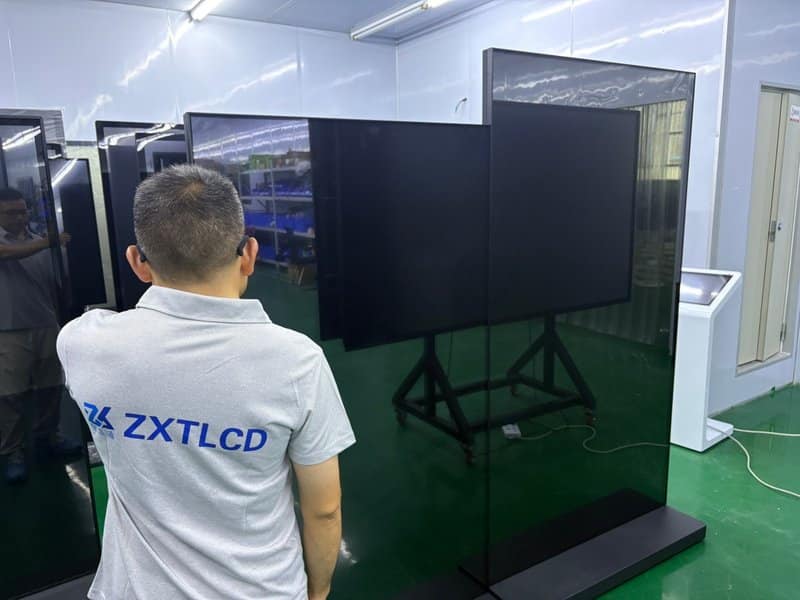
4. Proactive Measures to Minimize Conference Display Screen Failures
Disciplined daily care and standardized operating habits significantly reduce screen-related breakdowns and prevent accidental physical damage:
Keep the Screen Surface Clean: Use ultra-soft, lint-free microfiber cloths specifically approved for commercial display glass. Follow user instructions, avoid scratching the surface with hard objects, and never spray liquids directly onto the panel bezel.
Standardize Cable Interconnections: Use high-quality, certified video cables compatible with the display’s specifications. Align connectors properly and plug/unplug them gently without applying excessive bending force.
Maintain an Optimal Operating Environment: Ensure adequate ventilation space around the display chassis. Avoid exposing the machine to prolonged high ambient temperatures, excessive humidity, or heavy airborne dust environments.
Avoid Unauthorized Disassembly: The internal structure of commercial interactive panels is highly integrated. Unauthorized disassembly frequently introduces secondary damage. Always prioritize non-invasive external checks.
Maintain Accurate Fault Logs: Whenever a screen exhibits white screen states, color tinting, or intermittent flickering, document the exact date, active input port, software environment, and behavior during cross-testing. This documentation provides invaluable diagnostic context for service technicians.
Summary
When a conference all-in-one interactive display experiences a white screen, color shifts, or missing color channels, the root cause may span external video sources, cable connections, internal ribbon interfaces, driving electronics, or the LCD panel itself. The most cost-effective and reliable resolution approach is to systematically eliminate external connectivity and configuration variables before engaging certified technical support for advanced internal hardware diagnostics.
ZXTLCD remains deeply dedicated to commercial display engineering and enterprise collaborative technology. By understanding the root causes of screen anomalies, practicing standardized daily maintenance, and applying methodical troubleshooting workflows, enterprises can prevent premature component replacement and maximize the productive lifespan of their conference room display investments. In summary, choosing a reliable Interactive Flat Panel Screen Issues solution enhances team engagement, streamlines video conferencing, and elevates overall meeting productivity.
Looking for customized Interactive Flat Panel Screen Issues hardware, interactive flat panels (IFPD), or OEM/ODM smart board solutions? Feel free to contact the ZXTLCD engineering team for free consultations, product specifications, and tailored volume pricing.