

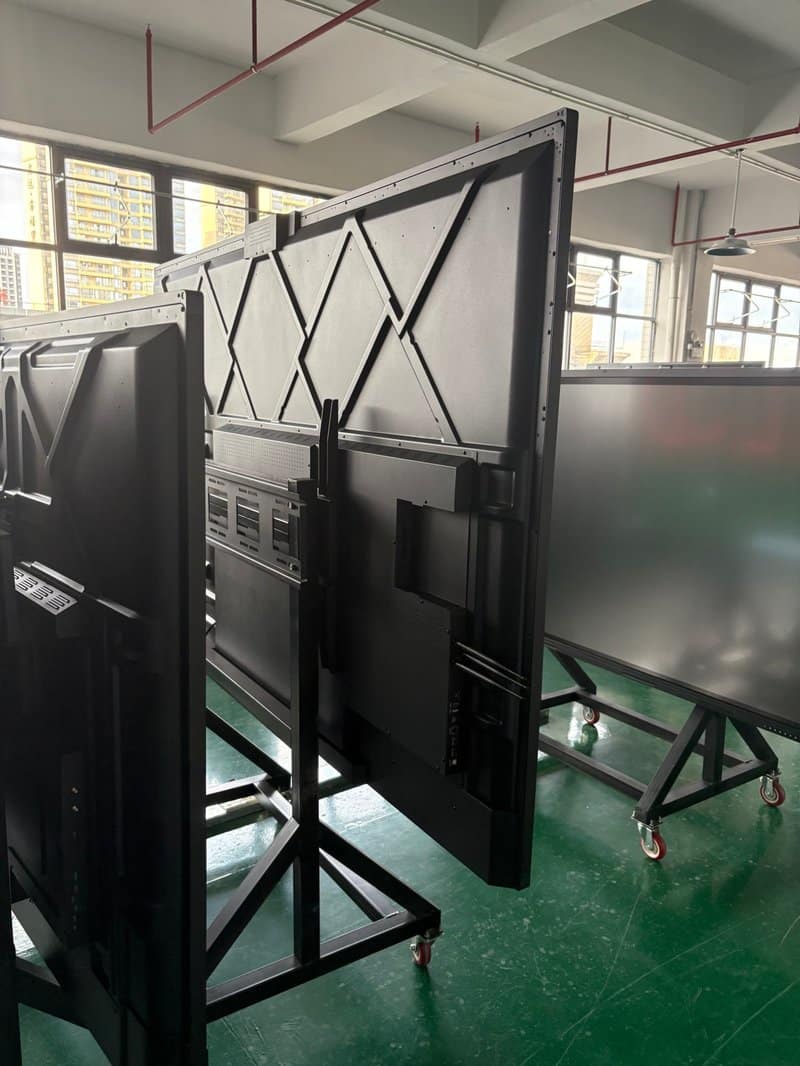

Deploying a professional Interactive Teaching Touch Display Maintenance provides modern collaborative spaces with an advanced digital presentation hub. Interactive touch all-in-one teaching displays integrate display panel technology, interactive touch operation, and high-performance computing capabilities into a single unified platform. They are widely deployed across K-12 classrooms, higher education lecture halls, corporate training centers, and multimedia instructional environments. Standardized maintenance and management protocols are critical to guaranteeing long-term operational stability, maintaining optimal display clarity and responsive touch sensitivity, and minimizing hardware and software failure risks.
To ensure consistent, stable, and long-term operation, institutions must implement comprehensive management practices encompassing daily cleaning, thermal management, software and hardware upkeep, standard operating procedures, regular curriculum data backups, and robust network cybersecurity safeguards.
Interactive Teaching Touch Display Maintenance: 01 Maintenance Methods for Interactive Touch All-in-One Teaching Displays
No. 1 Regular Cleaning
During daily instructional use, the display glass surface and housing of interactive touch all-in-one teaching machines naturally accumulate airborne dust, fingerprint smudges, and other surface residues. Periodic cleaning helps preserve high-definition visual clarity and ensures smooth, precise touch tracking and gesture recognition.
Before cleaning, power off the unit in accordance with the manufacturer’s instruction manual and disconnect the main power supply as required. Gently wipe the screen surface and chassis with a clean, soft, lint-free microfiber cloth. Avoid using abrasive sponges, industrial solvents, caustic chemical cleaners, or any unverified chemical solutions that could damage the optical surface coating.
Throughout the cleaning process, never spray liquids directly onto the glass surface, I/O ports, speaker grilles, or chassis seams. Ingress of liquid can seep into internal components, leading to touch sensor malfunction, short circuits, or permanent hardware failure.
No. 2 Maintain Optimal Ventilation and Thermal Dissipation
Interactive touch teaching displays generate a measurable amount of heat during continuous operational cycles. Adequate thermal dissipation conditions are crucial for sustaining reliable component performance and hardware longevity.
When installing the display, ensure sufficient clearance and ventilation space around the entire perimeter of the chassis. Avoid obstructing heat exhaust vents and cooling louvers with walls, acoustic baffles, curtains, or stacked classroom items. Never operate the display for extended durations in enclosed, poorly ventilated spaces or high-ambient-temperature environments.
During routine inspections, check external ventilation grilles for significant dust buildup. If the equipment exhibits abnormal surface heat, unexpected reboots, or operational instability, immediately assess environmental ventilation and address any thermal issues according to the product guidelines.
No. 3 Rational Scheduling of Power Cycles and Standby Modes
Powering the interactive teaching display on and off should strictly comply with the engineering design and operational guidelines provided by the manufacturer. Unnecessary and frequent hard power-offs can disrupt system stability and strain electrical circuitry, while leaving the display running continuously around the clock increases thermal load and power consumption.
During consecutive teaching sessions throughout the day, leverage the system’s built-in intelligent standby and low-power sleep functions based on actual classroom scheduling. At the end of daily classes or prior to prolonged idle periods, execute a standard system shutdown or enter deep standby as specified in the manual.
Standby mode should not be treated as a permanent replacement for standard shutdowns to extend service life, nor is it necessary to aggressively cycle power repeatedly in an effort to maintain hardware. For instructional settings requiring sustained uptime, operate the equipment strictly within manufacturer-rated duty cycles.
No. 4 Safe Storage During Extended Inactivity
When an interactive touch all-in-one teaching display is scheduled to remain decommissioned or idle for extended periods (such as winter or summer breaks), execute a proper operating system shutdown first, and safely disconnect the primary AC power cord once the shutdown sequence is fully complete.
The equipment should be stored or installed in a clean, dry, well-ventilated indoor environment shielded from direct sunlight exposure, excessive ambient heat, high humidity, and sharp temperature swings. For wall-mounted or trolley-mounted units fixed inside classrooms, deploy dust covers where appropriate and prohibit placing physical objects against or on the touch surface.
If the display must be dismounted, packed, or relocated, strictly follow the product manual’s relocation instructions. Large-format commercial touch panels should always be handled, transported, and reinstalled by qualified technical personnel utilizing appropriate lifting equipment to prevent mechanical flexing, glass pressure damage, or structural impact.
No. 5 Hardware Inspection and Preventative Maintenance
Periodically inspecting AC power cords, wall plugs, and external interface connectors allows potential electrical and connectivity risks to be detected early. If damaged insulation, loose plug prongs, deformed interface ports, or abnormal localized heat generation are identified, discontinue use immediately and schedule certified technical service.
External cooling vents and airflow intake paths must be kept free of persistent dust accumulations. Deep internal cleaning of cooling heatsinks, fans, and circuit boards must be performed exclusively by qualified service technicians adhering to maintenance intervals. Unauthorized disassembly by non-technical staff is strictly discouraged.
In the event of visual display anomalies, touch point failure, failure to power on, or other hardware malfunctions, conduct only the fundamental non-invasive checks permitted by the manual before escalating the unit to professional technical maintenance.
No. 6 Software System Maintenance
Interactive touch all-in-one teaching machines often run diverse operating systems (such as Android, Windows OPS modules, or dual-boot environments) hosting various educational platforms. Systematic software governance ensures smooth operating performance while mitigating software conflicts and security vulnerabilities.
Routine software maintenance should prioritize the following aspects:
System Storage Cleanup: Utilize built-in operating system storage utilities to clear unnecessary temporary cache files, download remnants, and system logs, taking strict care not to delete system binaries or critical instructional databases.
Controlled Software Updates: Selectively install verified educational software and hardware driver updates based on device model, OS architecture, and software compatibility requirements. Always verify software authenticity and back up critical data prior to running system upgrades.
Background Task Management: Terminate unused background applications that can be safely closed to release system memory (RAM) and processor overhead, avoiding unnecessary resource contention.
Operational Diagnostics: If the machine exhibits delayed boot times, spontaneous app crashes, or sluggish touch response, document the exact symptoms and review the error logs according to device documentation before taking troubleshooting steps.
For customized, closed, or vendor-managed centralized operating systems, do not blindly apply generic desktop PC registry cleaners or unverified third-party driver updaters. For system configuration adjustments, firmware flashes, or factory resets, always verify operational requirements first to avoid disrupting active classroom configurations and courseware databases.
02 Management Methods for Interactive Touch All-in-One Teaching Displays
No. 1 Clarify Administrative Responsibilities
Educational institutions and training centers should establish well-defined management responsibilities tailored to actual facility usage. Designated classroom administrators or IT staff should oversee pre-class operational checks, monitor device status during use, and ensure safe post-class shutdown procedures.
Administrators should routinely verify external physical condition, power cabling stability, multi-touch responsiveness, and visual display uniformity, logging any irregularities promptly for timely remediation.
Furthermore, standardized operating procedures should be established based on the room’s physical layout and environment, preventing unauthorized personnel from dismantling hardware, altering critical system parameters, or conducting operations that might jeopardize equipment integrity.
No. 2 Establish Standardized Operating Guidelines
Interactive touch all-in-one teaching displays serve primarily as instructional presentation hubs, multimedia teaching platforms, and student collaboration boards. Establishing clear, codified user rules prevents accidental hardware damage and ensures smooth classroom delivery.
Standard operating guidelines should encompass:
Clear User Authorization: Define distinct operational permissions for teachers, IT administrators, and students in accordance with institutional IT policy.
System Integrity Control: Strictly prohibit unauthorized modification of system settings, sideloading of unapproved software, or connection of untrusted peripheral hardware.
Safe Media Handling: Before loading courseware or presentations via USB flash drives or external drives, verify file authenticity and run security scans to prevent malware transmission.
Physical Safety Precautions: Instruct educators to ensure students refrain from rough play, running, or physical activities near the display to prevent accidental collisions.
Screen Surface Care: Never use sharp objects, pens, or keys to scratch or tap the display glass. Avoid heavy impacts or excessive pressure against the touch surface.
Standardizing user behavior effectively reduces human-error-induced equipment failure and fosters an orderly, professional teaching environment.
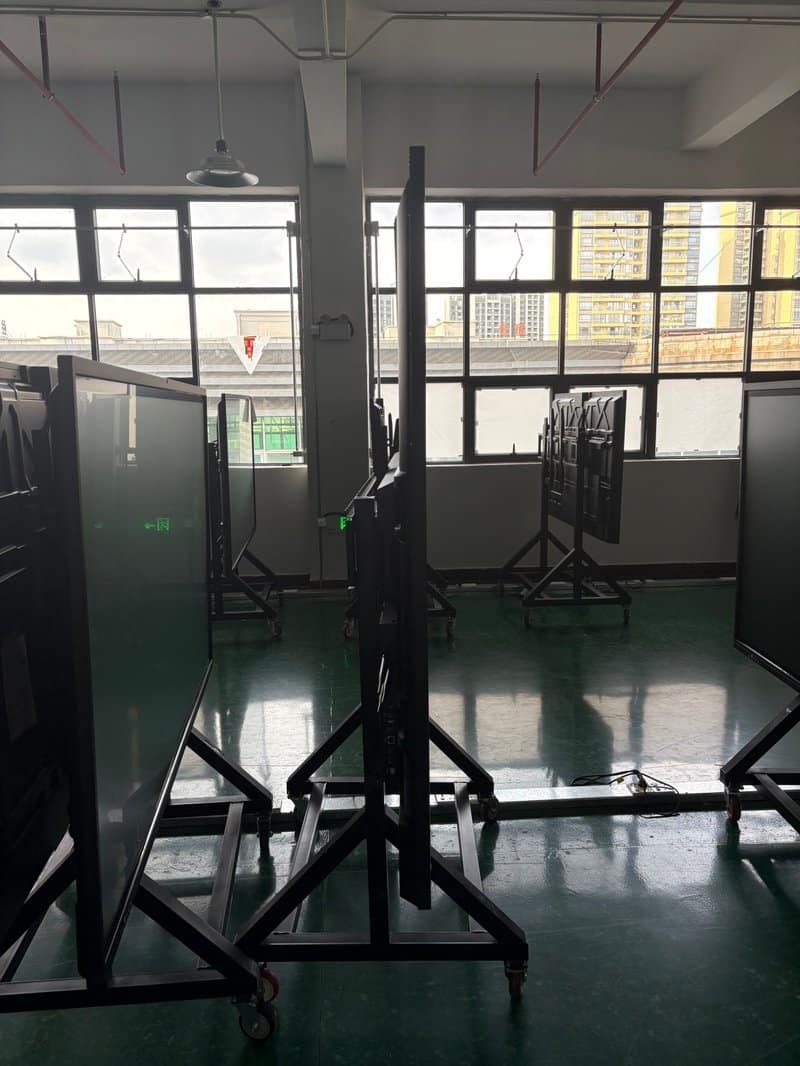
No. 3 Courseware Data Backup and Disaster Recovery Management
High-value digital teaching assets—including courseware decks, instructional video libraries, demonstration documents, and lesson databases—should be backed up routinely to eliminate the risk of catastrophic data loss resulting from accidental deletion, drive corruption, or system crashes.
Backups should be synchronized to authorized external storage arrays or secure campus cloud storage platforms based on institutional protocols. Administrators should routinely perform integrity checks to ensure backup archives remain complete, uncorrupted, and readily restorable.
If accidental file deletion occurs, immediately halt any write operations that could overwrite residual data blocks on the storage drive, then proceed with data recovery methods supported by the system architecture. Note that standard system restore points may not recover custom user files or external course libraries, and cannot replace independent off-site data backups.
System recovery, disk repair, and critical database restorations should be executed by knowledgeable IT professionals to avoid irreversible secondary data damage.
No. 4 Strengthen Network and Cybersecurity Defenses
When interactive touch teaching displays are connected to campus intranets or public networks, appropriate cybersecurity measures must be enforced in accordance with operating system capabilities and institutional network standards.
Routine cybersecurity protocols should include:
Prompt Security Patching: For supported operating systems and endpoint security software, regularly deploy security patches, system updates, and threat definition signature updates.
Access Control and Least Privilege: Configure role-based account privileges aligned with instructional requirements to block unauthorized users from reconfiguring network settings or accessing administrative directories.
Network Perimeter Protection: Enforce network firewall rules and security access control lists in accordance with institutional IT policies, restricting non-essential inbound and outbound network traffic.
Prudent Software Deployment: Exclusively deploy verified applications through verified institutional repositories or official vendor update channels, strictly avoiding untrusted third-party binaries and suspicious files.
Instructional Data Protection: Perform regular backups of critical instructional files and assign appropriate read/write permission tiers to minimize accidental modification and unauthorized data exfiltration.
Because different operating systems provide varying levels of security controls, deploy tailored defenses suited to the specific platform without attempting to force identical desktop software across all endpoints.
Summary
Effective maintenance and management of interactive touch all-in-one teaching displays demands a comprehensive approach spanning daily surface cleaning, ventilation and heat management, structured hardware/software inspections, disciplined classroom usage, dependable data backups, and multi-layered cybersecurity.
By establishing rigorous administrative workflows, assigning clear operational responsibilities, and adhering closely to manufacturer technical documentation, schools and training organizations can significantly reduce hardware failure rates, ensure vibrant display quality and responsive touch interaction, and deliver dependable technological support for modern interactive classrooms.
ZXTLCD delivers professional commercial display and interactive touch solutions. Tailored to the diverse demands of classroom interaction, multimedia education, and dynamic information display, ZXTLCD provides robust, commercial-grade display hardware engineered for various educational and professional environments. In summary, choosing a reliable Interactive Teaching Touch Display Maintenance solution enhances team engagement, streamlines video conferencing, and elevates overall meeting productivity.
Looking for customized Interactive Teaching Touch Display Maintenance hardware, interactive flat panels (IFPD), or OEM/ODM smart board solutions? Feel free to contact the ZXTLCD engineering team for free consultations, product specifications, and tailored volume pricing.