

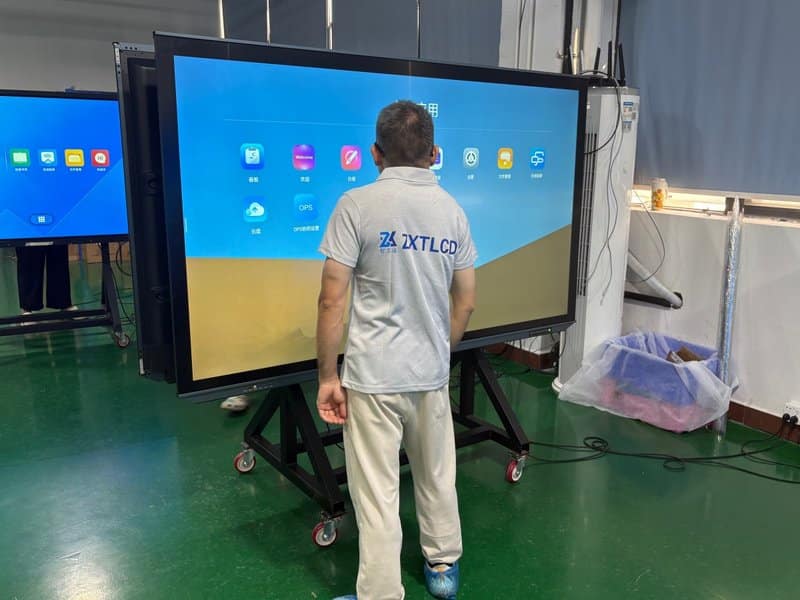

Deploying a professional Smart Board Boot Failure Troubleshooting provides modern collaborative spaces with an advanced digital presentation hub. With the rapid progression of digital workspaces, smart interactive conference flat panels (IFPDs) have become a standard fixture across enterprise boardrooms, corporate training suites, and commercial offices. By integrating visual display, touch interaction, multimedia playback, and hybrid collaboration into a unified hub, they significantly drive meeting productivity.
However, over extended operational lifespans, conference panels may occasionally encounter boot failures, touch inaccuracies, visual display glitches, or audio dropouts. When technical issues arise, conducting preliminary checks followed by methodical troubleshooting based on specific symptoms can quickly resolve problems. Concurrently, standardizing daily preventative maintenance helps preempt hardware malfunctions and maximize device uptime.
1. Common Conference Panel Faults and Troubleshooting Methods with a Smart Board Boot Failure Troubleshooting
Automatic Shutdowns or Failure to Power On
If a conference panel shuts down unexpectedly during operation or fails to power on when the power button is pressed, examine the following elements systematically:
**Inspect Power Connections and LED Status Indicators:**
Begin by verifying that the AC power cable is firmly seated in the power inlet and that the wall outlet or power distribution unit (PDU) is functioning properly. If the chassis power LED indicator remains completely dark, prioritize electrical supply troubleshooting. If incoming mains power is verified but the system remains non-responsive, internal power supply units (PSU) or motherboard circuitry require inspection.
**Review Power Management and Sleep Configurations:**
Many interactive flat panels feature scheduled auto-shutdown, sleep timers, or eco-mode power savings. If the display shuts down consistently at specific times, audit system settings to ensure auto-sleep policies were not triggered by temporary video signal drops or inactivity timers.
**Observe Status LEDs and Boot Sequences:**
If the power LED illuminates but the display panel remains dark, confirm whether the underlying system is actively booting before diagnosing display panels or external sources. Because LED color states (e.g., solid red, blinking amber, solid blue) vary across manufacturers, consult the official user manual for exact status definitions.
If the panel displays an error LED code, boot-loops, or repeatedly powers off, avoid aggressively yanking cables or disassembling the chassis. Execute a controlled power cycle as outlined in documentation; if the problem persists, escalate to certified technical service personnel.
Touch System Anomalies
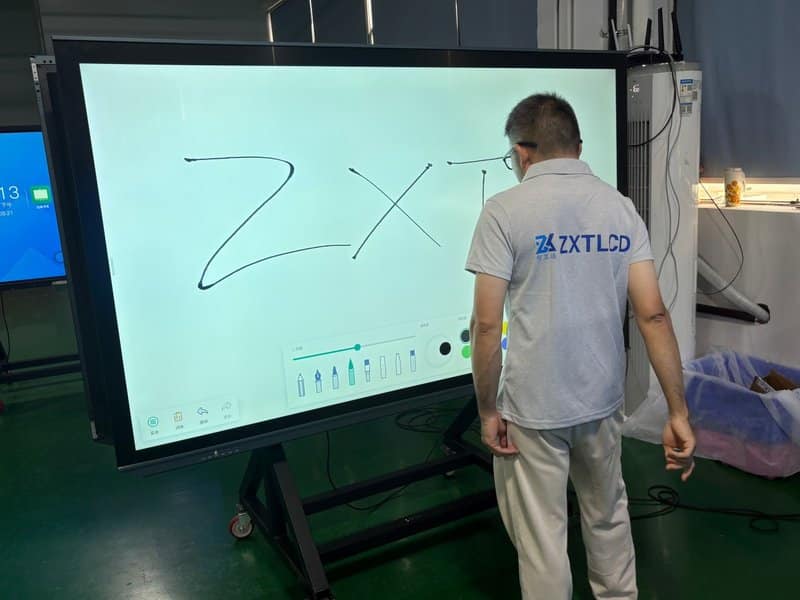
Touchscreen anomalies typically manifest as offset calibration (inaccurate touch), completely unresponsive touch input, or high latency. Because touch digitizers involve the front glass substrate, USB data conduits, operating system drivers, and external host PCs, troubleshooting should follow a step-by-step diagnostic sequence.
**Touch Point Offset or Calibration Drift:**
Inspect the display surface for accumulated dust, grease, or bezel obstructions. Ensure sleeves, jewelry, or leaning arms are not making accidental contact with the touch surface. If the hardware utilizes a dedicated stylus, verify that the stylus tip and technology (passive infrared, electromagnetic, or active capacitive) are compatible with the panel.
If the screen is clean but coordinate drift persists, access the system settings to recalibrate the touch digitizer in accordance with manufacturer instructions.
**Complete Touch Failure:**
When presenting from an external laptop or PC, ensure the designated USB touch return cable (USB Type-B or Type-C touch uplink) is securely connected to the matching port on the panel, and confirm that the host OS detects the human interface device (HID) controller.
If touch functions normally within the panel’s native embedded operating system (e.g., Android) but fails exclusively on the external PC, focus troubleshooting on the USB cable, PC operating system drivers, and input device permissions.
**Sluggish Touch Latency:**
If touch interaction feels markedly delayed, inspect system resource overhead, background application loads, and remaining internal storage. Terminate unnecessary background tasks and retest responsiveness.
If touch lag persists, check touch driver versions, firmware releases, and hardware digitizer integrity. Avoid installing generic, unverified third-party touch drivers, which may compromise device stability.
3. Visual Display Abnormalities
Display issues can originate from video transmission cables, active input source routing, output resolutions, operating system configurations, or physical panel hardware. Isolating the specific symptom narrows down the root cause.
**Color Distortion, Artifacts, or Image Flickering:**
When connecting an external PC, if the image displays abnormal color tinting, horizontal artifacts, or intermittent dropouts, inspect HDMI, DisplayPort, or USB-C cables for loose seating, excessive bending, or pin damage.
Switch to an alternate input channel, or test with a certified high-speed video cable that meets device bandwidth ratings. If the anomaly occurs exclusively with one laptop, audit that machine’s graphics output settings, refresh rates, and display color profiles.
**Incorrect Aspect Ratio, Underscan, or Overscan:**
If the presentation image fails to fill the entire panel or extends beyond the screen bezels, inspect the host PC’s display output resolution, scaling percentages, and aspect ratio settings.
Set the external PC output to the panel’s native resolution (typically 3840×2160 @ 60Hz for 4K models) to ensure 1:1 pixel mapping. Because display driver utilities differ across Windows, macOS, and Linux, configure scaling settings according to the operating system’s display properties.
**Black Screen or Complete Absence of Video:**
First, confirm main power delivery and the state of the power LED. Next, verify that the active input channel matches the physical port connected, ensure the video cable is firmly attached, and confirm that the host computer is awake and actively transmitting a video signal.
If the panel outputs audio or exhibits normal operating indicator lights while the screen remains totally black, attempt toggling input sources and perform a clean restart according to operating instructions. If the unit remains completely unresponsive or the black-screen condition recurs, an internal backlight, power board, or mainboard fault is likely, warranting hardware servicing.
Audio Anomalies
Audio faults generally present as normal video with absent sound, faint volume, or non-functional external sound reinforcement. Troubleshooting requires auditing volume sliders, input signal pipelines, and audio routing settings simultaneously.
**Video Present but No Sound:**
First, verify the panel’s internal master volume and ensure hardware mute is disengaged. Next, verify that the media application in use is not muted and that the active input channel carries an embedded digital audio stream.
When using an external computer, inspect the host operating system’s sound settings and default output device selection, confirming that audio is routed to the interactive panel’s HDMI/USB-C audio sink rather than local laptop speakers or Bluetooth headsets.
**No Sound from External Audio Peripherals:**
If the panel is connected to external active soundbars, distributed ceiling speakers, or room audio mixers, inspect analog line-out/SPDIF optical cables, jack selections, and audio routing menus in the panel’s OS. For HDMI-based ARC/eARC connections, verify that both the audio receiver and the panel support HDMI audio return protocols.
If basic configuration checks do not resolve the issue, swap in a verified-working audio cable or test an alternate audio source to determine whether the fault stems from the display unit, physical cabling, or downstream sound hardware.
2. Preventative Maintenance Guidelines for Interactive Panels
Beyond mastering fault troubleshooting, structured preventative maintenance is essential. Adhering to these standard practices keeps equipment pristine, prevents accidental damage, and ensures long-term operational reliability.
**1. Protect the Screen Surface from Sharp Objects:**
The interactive touch panel should never encounter sharp keys, metal pen tips, or abrasive tools. During daily operation, use bare fingertips or manufacturer-approved touch styluses to avoid scratching optical anti-glare coatings or damaging delicate surface digitizers.
**2. Guard Against Mechanical Shock and Improper Transportation:**
Large-format interactive panels feature expansive front glass substrates that can crack under violent impacts or localized pressure. During installation, mobile cart relocation, or bracket adjustment, handle the chassis according to manufacturer instructions and never apply localized force to the center of the glass.
Before rolling mobile carts, organize and secure all trailing power and signal cables to prevent tripping hazards, strained ports, or cart tipping accidents.
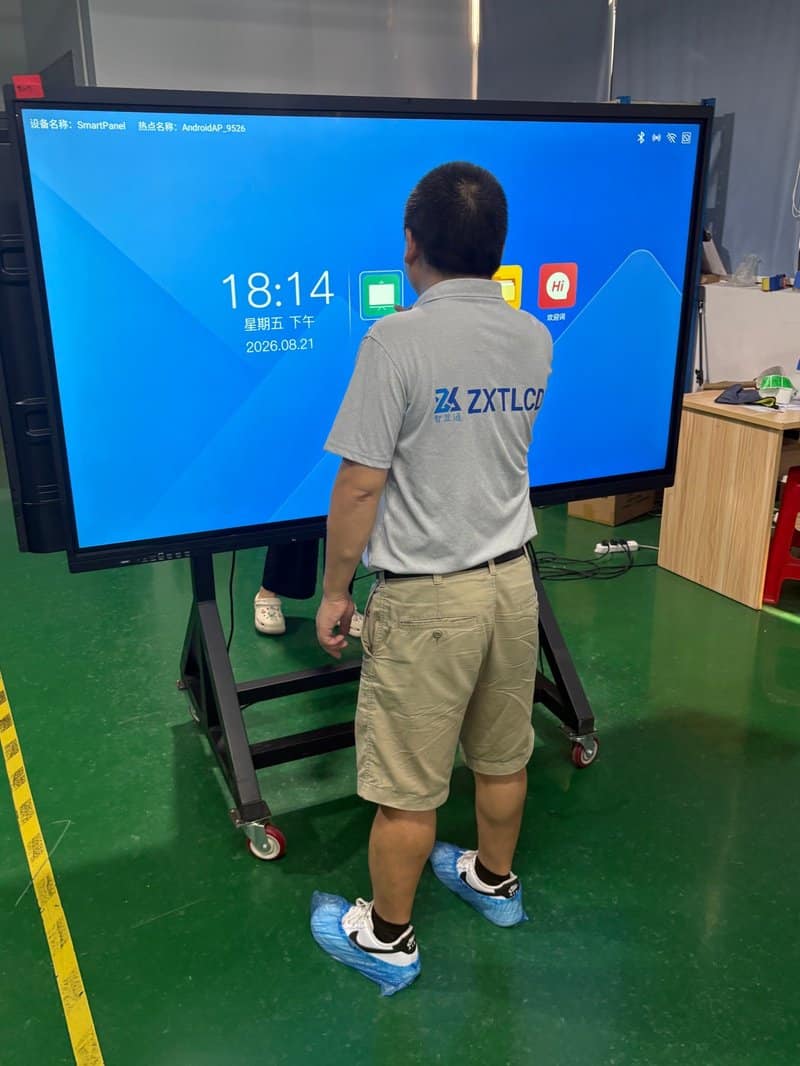
**3. Routine Dust Removal from Bezels and Vents:**
Bezel edges, optical sensor recesses (for infrared touch frames), and cooling ventilation slots accumulate airborne dust over time. Neglecting routine cleaning degrades aesthetic appeal, while dust accumulation inside infrared bezel tracks can impair touch tracking accuracy.
Regularly wipe the screen surface, bezel frames, and chassis housing using an ultra-soft, lint-free microfiber cloth. Keep sensor tracks and thermal exhaust grilles free of dust blockages.
**4. Employ Approved Cleaning Techniques:**
Always shut down and power off the equipment prior to cleaning. Never spray cleaning solutions, water, or solvents directly onto the glass or into chassis seam gaps, and never use abrasive cloths, corrosive detergents, or unverified industrial-grade alcohol.
Use cleaning solutions and lint-free cloths officially approved by the manufacturer, ensuring liquids do not seep into chassis margins. Because different optical surface treatments (such as anti-glare etching or oleophobic coatings) react differently to chemical agents, never apply generic glass cleaners indiscriminately.
**5. Avoid Excessive Heat, Humidity, and Blocked Ventilation:**
Operate and store interactive panels strictly within specified ambient temperature and humidity tolerances. Protect the equipment from prolonged exposure to direct sunlight, and avoid positioning displays in damp environments or areas prone to water leaks.
During wall-mounting, preserve adequate ventilation clearance around the chassis as specified in installation manuals. Keep airflow pathways clear of paper stacks, decorative curtains, or furniture to prevent thermal throttling.
If a device exhibits abnormal chassis heat, unexpected thermal cutoffs, or unstable performance, inspect ventilation channels immediately and consult technical support if overheating persists.
3. Establishing a Standardized Device Maintenance Routine
For enterprises operating interactive panels across multiple meeting rooms, implementing a structured maintenance routine is strongly recommended. Routine checks should include inspecting power plugs and patch cables, testing multi-touch responsiveness, validating audio and video feeds, and clearing dust from bezels and thermal vents.
When recurring faults emerge, document symptoms, timestamps, active input sources, and attempted remediation steps. Detailed technical logs allow support engineers to rapidly isolate root causes.
If issues involve internal power supplies, motherboard electronics, or low-level firmware corruption, avoid unauthorized chassis disassembly. Contact authorized technical support or manufacturer service channels to execute certified repairs.
Conclusion
When an interactive conference panel encounters power anomalies, touch glitches, display defects, or audio drops, conducting methodical checks across electrical power, cable seating, input channels, and software configurations resolves the vast majority of operational hiccups. On a day-to-day level, disciplined screen cleaning, port care, environmental climate control, and system updates protect equipment investments and minimize disruptions to business meetings.
ZXTLCD provides commercial displays and smart conference solutions. Combining rigorous product selection, professional mounting standards, and systematic preventative maintenance ensures meeting spaces deliver dependable visual clarity and collaborative efficiency year after year. In summary, choosing a reliable Smart Board Boot Failure Troubleshooting solution enhances team engagement, streamlines video conferencing, and elevates overall meeting productivity.
Looking for customized Smart Board Boot Failure Troubleshooting hardware, interactive flat panels (IFPD), or OEM/ODM smart board solutions? Feel free to contact the ZXTLCD engineering team for free consultations, product specifications, and tailored volume pricing.