

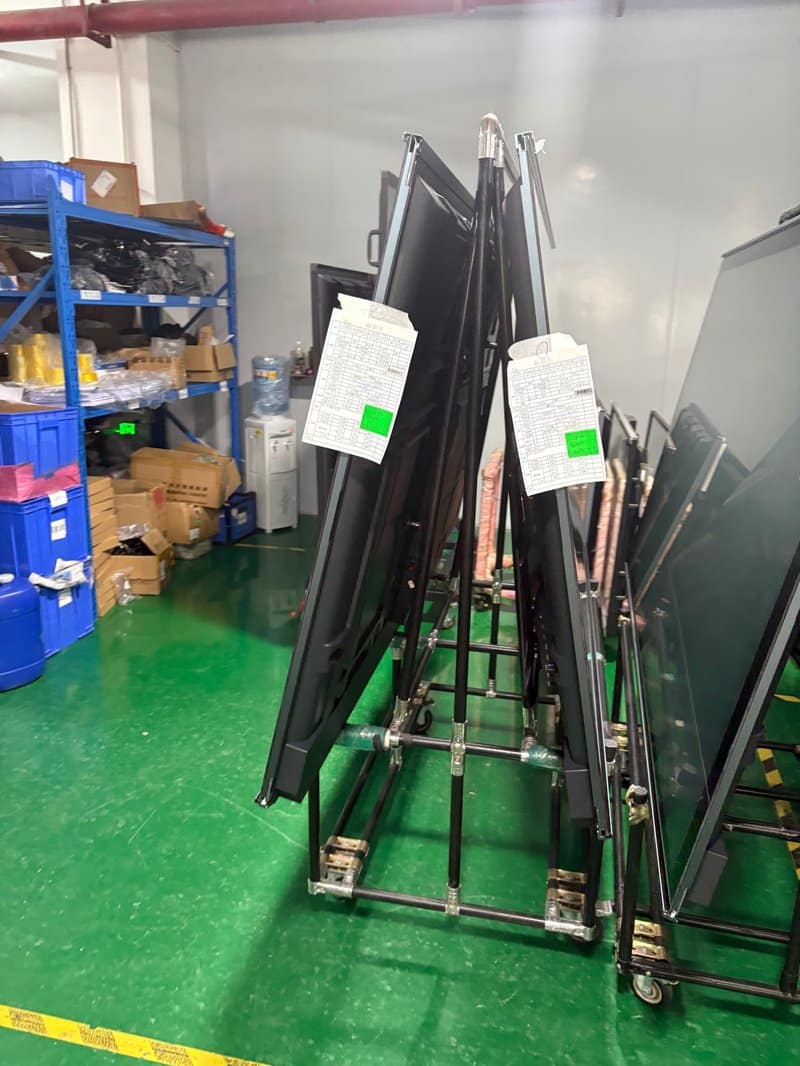

Deploying a professional Smart Conference Board Fault Diagnostics provides modern collaborative spaces with an advanced digital presentation hub. With the continuous advancement of intelligent office technology, enterprise adoption of smart conference all-in-one interactive machines (interactive flat panels / IFPDs) has grown exponentially. Compared with traditional erasable whiteboards and standalone projection systems, smart conference all-in-one displays seamlessly combine visual presentation, interactive touch writing, multimedia playback, and wireless screen sharing into one unified platform. This integrated approach renders meeting presentations far more intuitive, dynamic, and productive for everyday corporate communication and collaboration.
However, over continuous and extended operational lifecycles, conference all-in-one devices may inevitably exhibit technical glitches such as black screens, unresponsive remote controllers, audio background noise, or startup failures. Understanding the root causes of these typical equipment faults allows IT managers and meeting operators to perform effective preliminary troubleshooting and take appropriate corrective actions in a timely manner.
Smart Conference Board Fault Diagnostics: 01 Common Faults in Conference All-in-One Machines and Their Solutions
1. Black Screen After Running for a Period
If a conference all-in-one display suddenly turns black after operating normally for a while, the issue is typically linked to external power instability, thermal overload, video signal interruption, or internal display driving circuit protection.
Troubleshooting Steps:
Power Supply Verification: Observe the primary power indicator LED to confirm whether AC power delivery remains active and stable.
Video Signal Source Check: Verify whether the active video channel is correctly selected and confirm that the external laptop or transmitting device has not entered sleep mode, disconnected, or experienced graphics driver crashes.
Thermal Inspection: If the equipment chassis feels unusually hot to the touch or if an on-screen thermal warning prompt appears, immediately suspend operation and inspect room ventilation in accordance with the user manual.
Cooling Louver and Fan Check: For models equipped with active fan-assisted cooling systems, ensure that external exhaust vents are not obstructed by acoustic walls or curtains, and check whether cooling fans are operating without abnormal whirring or stalling.
Escalation: If the screen repeatedly drops to black, cannot restore normal video output, or demonstrates evident overheating, shut down the unit, disconnect power, and contact certified technical support. Never attempt internal chassis disassembly independently.
2. Remote Controller Unresponsiveness
Remote control failure is frequently associated with depleted battery charge, excessive operating distance or angle, obstructed infrared (IR) receivers, or physical damage to the controller or sensor module.
Troubleshooting Steps:
Battery Inspection: Check whether the batteries are inserted with correct polarity, clean any terminal corrosion, and replace them with fresh alkaline batteries as specified.
Operating Range and Line of Sight: Ensure the remote controller is operated within its rated effective range and oriented directly toward the display’s integrated infrared receiving window.
Check for Path Obstructions: Inspect the front bezel area to ensure table items, paper stacks, or external meeting room accessories are not blocking the IR receiver window.
Physical Key Verification: If the remote controller remains completely non-functional after battery replacement, test the physical control buttons or side touch keypads on the display frame to determine whether the issue is isolated to the remote controller.
Module Inspection: If the issue persists, the fault may lie within the remote control handset, the internal IR receiving board, or the control logic circuits, requiring professional technical inspection.
3. Audio Noise, Hum, and Buzzing from Speakers
When an interactive conference display outputs static, crackling, background hum, or distorted audio, the root cause is usually tied to volume over-amplification, loose audio interconnects, electromagnetic signal interference, external speaker mismatches, or software sound configurations.
Troubleshooting Steps:
Volume Level Balancing: Balance the output volume between the conference machine and connected computer sources to prevent signal clipping and harmonic distortion caused by digital gain overdrive.
Audio Cable and Jack Inspection: Ensure 3.5mm AUX or HDMI cables are seated firmly and free of frayed shielding or oxidized pins.
Operating System Sound Endpoint Configuration: In the connected computer’s audio panel, confirm that the designated audio output device corresponds correctly to the interactive display or connected audio interface.
External Sound System Isolation Testing: If external powered speakers or conference soundbars are deployed, perform cross-testing across available input channels to pinpoint whether noise originates from the source laptop, interconnecting cables, or external amplifiers.
Immediate Safety Precautions: If audio distortion is accompanied by buzzing, burning odors, or excessive localized heating, immediately shut down the display and disconnect AC power. Have certified technicians examine internal audio amplifiers and power circuitry. Never disassemble audio modules while connected to mains power.
4. Power Failures Causing Inability to Boot
When a conference all-in-one display refuses to turn on entirely, potential causes include dead electrical outlets, damaged power cords, disengaged primary rocker switches, or triggered internal power supply protection circuits.
Troubleshooting Steps:
Wall Outlet and Cable Verification: Test the electrical wall receptacle with another certified appliance and verify that the power cord is firmly seated in the display’s IEC power socket without visible cord damage.
Physical Rocker Switch Verification: Confirm that the master physical power switch (often located near the AC inlet on the bottom or rear panel) is toggled to the “ON” position, then execute the startup sequence via the front power button or remote.
Status Indicator Diagnosis: Observe whether the standby LED illuminates (e.g., solid red or flashing amber) or whether startup relay clicks and cooling fans engage, which helps isolate whether power reaches the standby transformer.
Overcurrent Protection Precautions: If the equipment incorporates user-accessible fuse compartments or breaker resets, check them strictly according to manufacturer specifications. Never replace fuses with unverified ratings or attempt unauthorized power supply disassembly.
Professional Service Escalation: If external AC power is confirmed normal yet the machine displays zero sign of life, the fault likely resides within internal power supply boards, main logic boards, or standby circuits. Cease repeated power cycles and contact certified technical service.
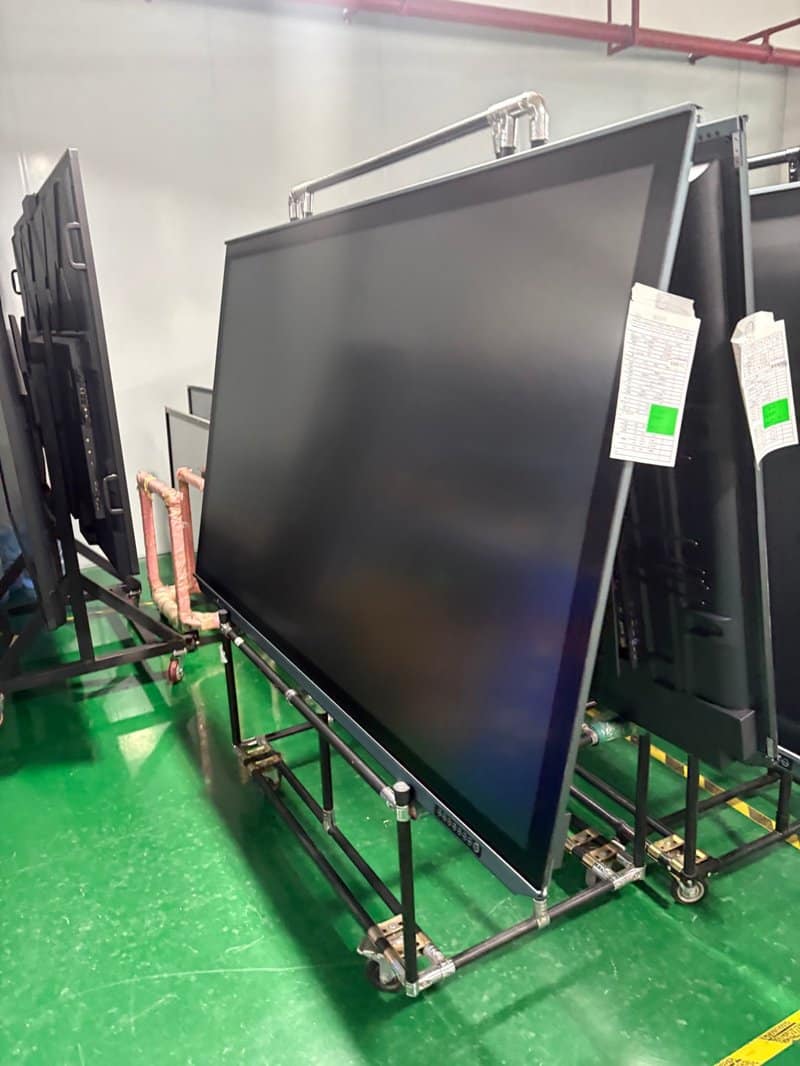
02 Features and Application Value of Interactive Teaching and Conference Displays
Interactive all-in-one displays for education and corporate meetings represent a sophisticated integration of large-format LCD display technology, interactive multi-touch sensing, and onboard computing architecture. They serve as versatile collaboration centers across classrooms, meeting rooms, training seminars, and executive boardrooms.
1. Multi-Dimensional Interactive Capabilities
Depending on specific hardware and firmware configurations, smart all-in-one displays support digital whiteboard annotation, multi-point touch gesture control, 4K multimedia playback, and wireless screen projection. By combining these presentation modes into a single surface, they eliminate the cumbersome workflow of toggling between analog whiteboards and projectors, drastically enhancing information delivery efficiency.
2. Premium Visuals and Durable Touch Surfaces
Visual clarity, touch tracking accuracy, and physical surface durability depend heavily on optical specifications and protective engineering. Premium commercial models employ high-grade tempered glass with anti-glare (AG) surface treatments, providing exceptional scratch resistance during high-frequency stylus interaction and protecting internal LCD cells from accidental mechanical impact. Users should still observe sensible precautions, avoiding sharp metal objects and abrasive cleaners.
3. Flexible Operating Systems and Multimedia Processing
Different models of conference displays can be outfitted with specialized Android SOCs, high-performance Windows OPS modules, or dual-OS configurations. Systems are engineered to support 4K video decoding, rich document rendering, and specialized video conferencing platforms. When procuring devices, organizations should align hardware specifications with actual organizational software platforms, file resolutions, and concurrent application workloads.
4. Standard OPS Computing Architecture and Extensive I/O Connectivity
Many enterprise-grade interactive panels feature Intel Open Pluggable Specification (OPS) slots, enabling modular PC installations, rapid field servicing, and cost-effective computing upgrades without replacing the large-format display panel. Devices are further outfitted with extensive I/O arrays—including HDMI inputs/outputs, multi-channel Touch-USB, Type-C, gigabit LAN, and line-out audio—to interface effortlessly with external laptops, PTZ cameras, wireless microphones, and room automation controllers.
5. Broad Enterprise and Educational Application Scenarios
Interactive all-in-one displays are widely utilized across educational institutions, corporate training hubs, high-tech enterprise boardrooms, financial headquarters, government briefing centers, and medical consultation rooms. Because each vertical demands distinct visual resolutions, touch protocols, OS security baselines, and peripheral integration capabilities, organizations should carefully match equipment configurations to their unique operational environments.
ZXTLCD provides commercial display and interactive touch products engineered to meet exacting enterprise standards. Whether deployed for boardroom collaboration, interactive classroom teaching, or high-impact digital information presentation, ZXTLCD offers commercial-grade display solutions tailored to diverse enterprise environments. In summary, choosing a reliable Smart Conference Board Fault Diagnostics solution enhances team engagement, streamlines video conferencing, and elevates overall meeting productivity.
Looking for customized Smart Conference Board Fault Diagnostics hardware, interactive flat panels (IFPD), or OEM/ODM smart board solutions? Feel free to contact the ZXTLCD engineering team for free consultations, product specifications, and tailored volume pricing.