

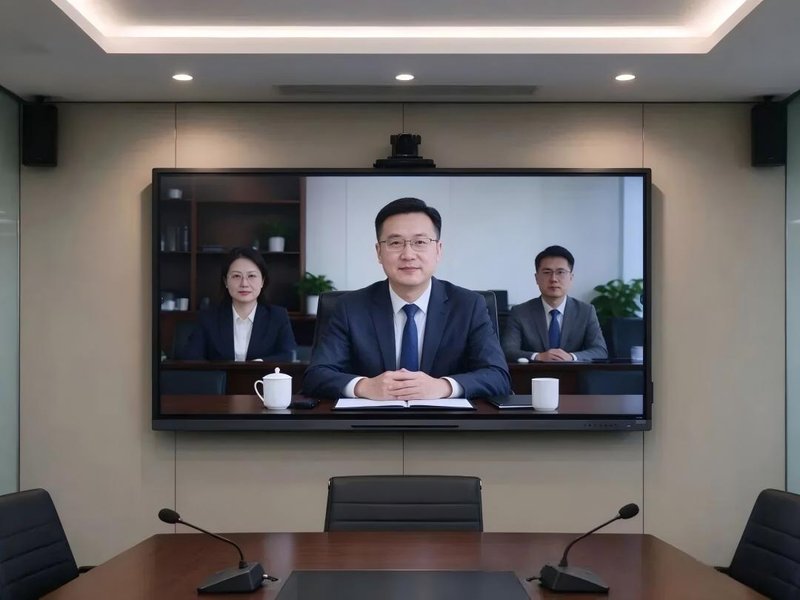

Deploying a professional Video Conferencing All-in-One Hardware Faults provides modern collaborative spaces with an advanced digital presentation hub. Video conferencing systems serve as a critical pillar of modern corporate communication and remote collaboration. Maintaining reliable operation involves multiple interconnected domains, including network bandwidth, audiovisual hardware, endpoint configurations, and system administration. When meetings suffer from video stuttering, image jitter, call connection failures, or IP address conflicts, technical support teams must systematically troubleshoot based on specific symptoms to isolate root causes efficiently.
For enterprise IT support teams, mastering common fault symptoms, probable failure causes, and standard remediation workflows significantly accelerates mean-time-to-repair (MTTR) and minimizes meeting interruptions.
Troubleshooting and Maintenance Methods for Common Video Conferencing Faults with a Video Conferencing All-in-One Hardware Faults
Common video conferencing issues can be classified into four primary categories. Because hardware specifications and network architectures vary across deployments, remediation procedures should be adjusted to match actual system configurations.
Category 1: Video Freezing and Playback Stuttering
During a video call, if video feeds freeze abruptly, voice streams break up intermittently, or two-way conversation experiences severe lag, the issue is typically linked to insufficient network bandwidth, local network congestion, faulty cabling, or processor overloading on the terminal device.
Troubleshooting and Remediation Workflow:
First, inspect physical network connectivity, verifying that Ethernet patch cables and wall RJ45 jacks are securely connected and free from physical damage. If operating over wireless Wi-Fi, evaluate RF signal strength, channel interference, and wireless connection stability.
Second, examine bandwidth utilization across the local network to confirm whether concurrent high-bandwidth applications or downloads are choking available throughput. For video systems operating across enterprise LANs and public WANs, monitor real-time latency, packet loss, and jitter metrics.
If network congestion is confirmed to degrade meeting quality, utilize conferencing software settings to lower video resolution, decrease encoding bitrate, or adjust frame rates, while optimizing local bandwidth allocation. Following parameter adjustments, conduct live test calls to verify whether video and audio streams have stabilized.
If network parameters remain healthy yet stuttering persists, examine terminal operating temperatures, processor workloads, running background applications, and driver compatibility rather than assuming the problem is strictly network-related.
Category 2: Video Lag, Image Jitter, Blurriness, or Pixelation (Artifacts)
When video feeds exhibit high latency, picture stutter, blurred details, or digital mosaic artifacts, potential root causes include packet loss bursts, excessive network transmission delay, suboptimal video codec profiles, optical camera misconfigurations, or overloaded video processing hardware. Because distinct root causes produce similar visual symptoms, systematic isolation is essential.
Troubleshooting and Remediation Workflow:
Step 1: Check network transmission health. Verify connection stability and inspect for noticeable packet loss, high round-trip latency (RTT), or severe network jitter. Where supported, review diagnostic metrics in the video conferencing client to assess whether transmission impairments exist.
Step 2: Provided appropriate administrative permissions and operational windows are available, terminate and re-establish the conference session to determine if video clarity recovers. If re-establishing the session temporarily clears the defect, continue monitoring transmission statistics to avoid mistaking temporary recovery for permanent resolution.
Step 3: Inspect video endpoint settings for resolution, frame rate, and bitrate, ensuring encoding configurations on transmitting endpoints match decoding capabilities on receiving terminals. Under constrained bandwidth, modestly reduce video quality or target bitrates to enhance stream continuity. Verify that chosen configurations align with meeting demands and equipment capabilities before applying changes.
In enterprise networks equipped with advanced traffic management, configure Quality of Service (QoS) policies to assign highest priority queues to real-time RTP/RTCP audio and video streams. Network administrators must implement QoS policies in accordance with overall enterprise routing architecture.
Category 3: Inability to Place Outgoing Calls or Join Conferences
When a video conferencing terminal fails to place outgoing calls, cannot connect to scheduled meetings, or fails to communicate with the central MCU/SIP server, faults typically stem from incorrect IP configurations, DNS resolution failures, restrictive firewall rules, server outages, or expired user account credentials.
Troubleshooting and Remediation Workflow:
First, verify that the terminal is receiving stable electrical power and has an active network link. Cross-check conference SIP/H.323 dialing strings, domain names, server IP addresses, and session passwords. If issues arise following fresh installations or network changes, verify that endpoint network profiles match current subnet parameters.
Second, test DNS name resolution, default gateway routing, and required firewall port accessibility. In corporate enterprise networks, confirm that perimeter firewalls or intrusion prevention policies are not blocking essential SIP (UDP/TCP 5060/5061), H.323 (TCP 1720), or dynamic media RTP/RTCP port ranges.
If the terminal previously operated without issue but suddenly failed to connect after an IT policy or router update, audit recent firewall change logs to identify rules restricting video traffic.
Security Precaution: Never completely disable firewalls or bypass corporate security boundaries merely to restore meeting connectivity. Network administrators should inspect manufacturer port requirement matrices, open only verified essential ports, and enforce changes within enterprise cybersecurity policies.
If network routing and firewall ports test clean, inspect conference server operational statuses, client software versions, and account license allocations to isolate the root cause further.
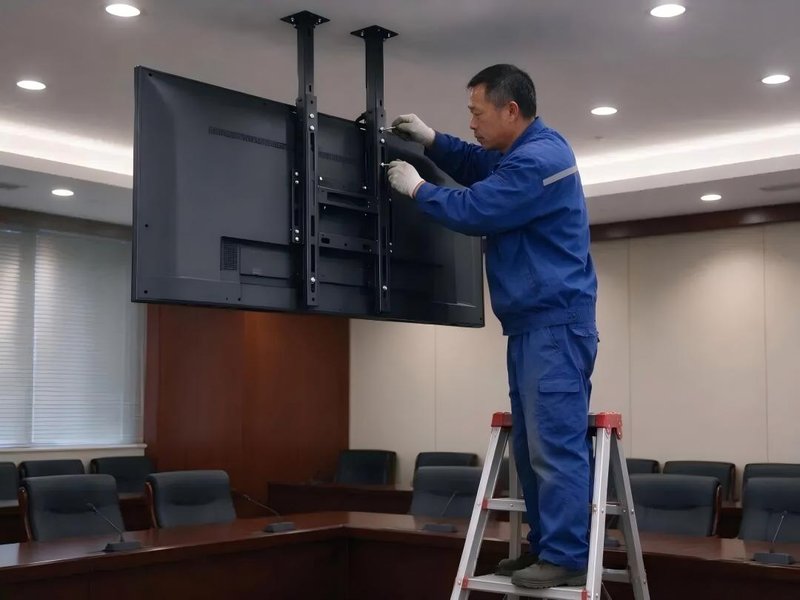
Category 4: IP Address Acquisition Failure or Server Registration Failure
Video conferencing endpoints may encounter DHCP IP acquisition failures, IP address conflicts, or SIP/cloud server registration failures. These anomalies typically correlate with local network configuration errors, DHCP scope exhaustion, gateway routing errors, or authentication mismatches.
Troubleshooting and Remediation Workflow:
1. IP Address Acquisition Failure
Inspect Ethernet patch cables, wall jacks, and upstream switch port link lights. If the terminal is configured for dynamic DHCP addressing, verify that the local DHCP server is active and that available address pools are not exhausted.
If using static IP addressing, verify that the assigned IP address, subnet mask, default gateway, and DNS servers are configured accurately, and ping the address to ensure no IP conflict exists with another network device.
2. Server Registration Failure
Confirm that the terminal possesses a valid IP address and can successfully reach the gateway. Review registration server URLs, SIP/H.323 account usernames, authentication passwords, and realm settings. If the endpoint authenticates against an on-premises gatekeeper or cloud platform, verify that the remote server is online and reachable.
If network topologies, credentials, or server addresses were recently modified, inspect recent change logs first. Once parameters are corrected, re-initiate registration and test call connectivity.
Note that IP address acquisition failure and conference account registration failure represent distinct technical domains; technicians must diagnose them separately based on precise error codes rather than randomly modifying unrelated settings.
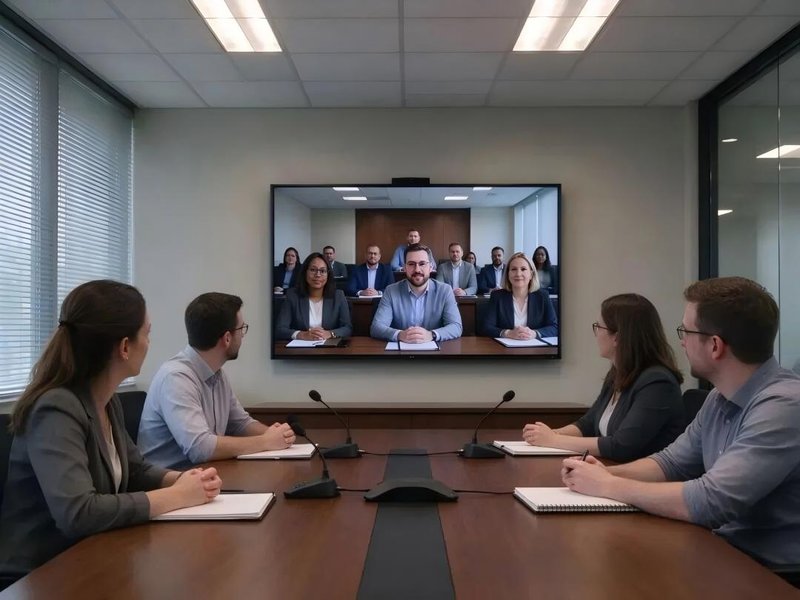
Establishing a Standardized Troubleshooting Methodology
To maximize maintenance efficiency, IT teams should follow a structured troubleshooting methodology moving from simple physical checks to complex system configurations:
– Step 1: Identify and Document Fault Symptoms. Record the exact occurrence time, error codes, affected hardware, and whether the issue is intermittent or persistent.
– Step 2: Verify Foundational Physical Connectivity. Confirm power supplies, Ethernet patch cords, physical AV connectors, and basic network link lights.
– Step 3: Audit System Configurations. Verify terminal video settings, encoding bitrates, IP network parameters, and conference server credentials.
– Step 4: Test Network Transmission Quality. Measure bandwidth consumption, packet loss, round-trip latency, and network jitter under active loads.
– Step 5: Execute Single-Variable Adjustments and Verification. Adjust only one variable at a time, followed immediately by validation tests to verify cause and effect.
– Step 6: Log Maintenance Actions and Root Causes. Document fault symptoms, corrective actions, and final resolutions in service logs to expedite future troubleshooting of recurring issues.
If problems involve complex enterprise routing architectures, MCU cluster configurations, or internal hardware circuit failures, escalate to certified network engineers or manufacturer technical support.
Conclusion
Video conferencing system malfunctions can originate from network transmission, terminal hardware, software configurations, or corporate security policies. Only by executing disciplined, tiered troubleshooting based on concrete symptoms can IT teams rapidly locate root causes and prevent disruptive configuration churn.
ZXTLCD provides commercial display and conference display solutions. When deploying and maintaining conference display equipment, enterprises should establish preventative maintenance schedules tailored to local network infrastructure, system architectures, and operational demands—regularly inspecting connections, visual performance, and hardware reliability to deliver stable support for daily meetings and remote collaboration. In summary, choosing a reliable Video Conferencing All-in-One Hardware Faults solution enhances team engagement, streamlines video conferencing, and elevates overall meeting productivity.
Looking for customized Video Conferencing All-in-One Hardware Faults hardware, interactive flat panels (IFPD), or OEM/ODM smart board solutions? Feel free to contact the ZXTLCD engineering team for free consultations, product specifications, and tailored volume pricing.