

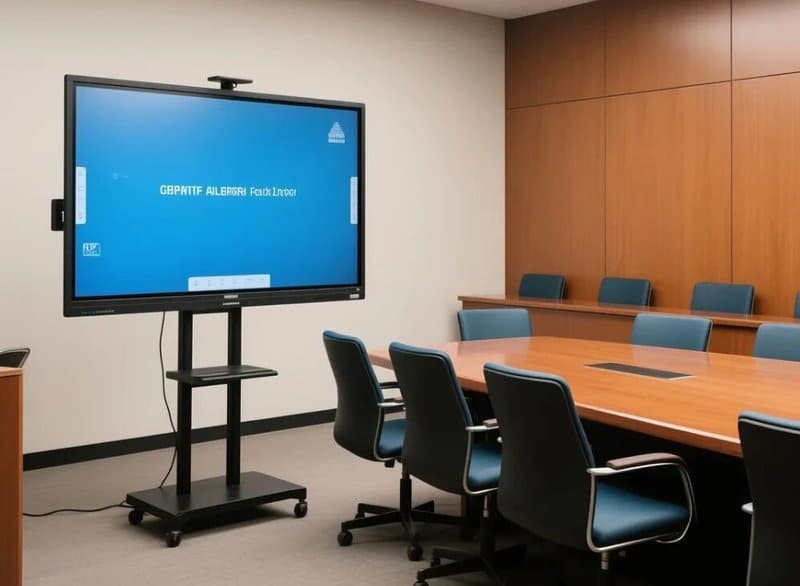

Deploying a professional Wireless Screen Sharing Smart Board provides modern collaborative spaces with an advanced digital presentation hub. Have you ever encountered situations like this before every meeting?
Before the meeting begins, participants have to repeatedly plug and unplug laptop cables, hunt for adapters, or adjust display settings, delaying the meeting start time. During the session, some jot down notes on a whiteboard, others scribble in paper notebooks, while others take phone photos of discussed slides. After the meeting, notes and action items are scattered across multiple places, requiring substantial extra time to organize. For remote participants, struggling to see the physical whiteboard clearly further hurts communication efficiency.
These issues stem not only from the meeting process itself, but also from display equipment, collaboration tools, and information management practices. An all-in-one conference machine (interactive flat panel display) integrates display, touch writing, and multimedia presentation capabilities into a single device, helping conference rooms simplify workflows and make discussions and information sharing more intuitive.
1. Common Challenges in Traditional Conference Rooms with a Wireless Screen Sharing Smart Board
Cumbersome Device Connection and Screen Casting
Traditional conference rooms typically rely on projectors, PCs, connection cables, and various peripheral accessories. Differences in interfaces, operating system settings, and projection protocols across devices frequently cause connection failures, display blackouts, or tedious troubleshooting when preparations are inadequate.
Depending on configuration, all-in-one conference displays support both wired connections and wireless screen casting, eliminating extra external devices and connection steps. Confirming device compatibility, video interfaces, and network conditions beforehand greatly improves pre-meeting preparation efficiency.
Scattered Meeting Records and Inconvenient Follow-Up
In traditional meetings, discussion points often end up scattered across whiteboards, paper notes, presentation slides, and instant messaging chats. Fragmented information in different formats is difficult to manage uniformly, and critical details are easily overlooked during post-meeting transcription.
All-in-one conference machines equipped with digital whiteboarding and file-saving capabilities can centrally save annotations, presentation materials, and key discussion takeaways for quick post-meeting review and sharing. Supported file formats, export methods, and collaboration features depend on specific hardware and software configurations.
Difficulty for Remote Participants to Stay in Sync
In cross-regional meetings, on-site attendees can directly view the screen and whiteboard, while remote members must rely on webcam feeds or screen shares to follow along. If the whiteboard is blurry or on-site materials are not shared promptly, critical information transfer suffers.
By pairing the display with video conferencing systems, screen sharing, and dedicated audiovisual equipment, remote participants can follow meeting content much more clearly. The overall experience depends on cameras, microphones, network environments, and the conferencing software used.
2. What Can a Conference All-in-One Display Actually Do?
An all-in-one conference machine is a commercial display device that combines high-definition display, interactive touch capabilities, and multimedia presentation functions into one terminal. Depending on product configurations, it can also support wireless screen casting, digital whiteboards, video conferencing, and cloud file sharing.
Wireless Screen Casting: Streamlining Content Presentation
Wireless screen casting allows content from laptops, tablets, or smartphones to be projected onto the large conference display, making it easy for attendees to present slide decks, product designs, data spreadsheets, and other meeting assets.
Select models support split-screen multi-device display, enabling teams to compare different proposals or view multiple documents simultaneously. Screen casting methods may include dedicated software, wireless transmission protocols, or hardware dongles, depending on device specifications and operating system compatibility.
Before the meeting, it is recommended to verify operating systems, connection methods, network parameters, and user permissions to avoid compatibility delays.
Interactive Digital Whiteboard: Making Discussions More Visual
Interactive whiteboards serve meeting notes, brainstorming sessions, solution discussions, and workflow diagrams. Compared to traditional whiteboards, digital whiteboards offer distinct advantages in saving, modifying, and distributing content.
Depending on software functionality, some devices support pen color switching, shape recognition, infinite canvas expansion, object movement, and handwriting recognition. For meetings requiring multi-person engagement, multi-touch capable devices allow several team members to annotate and edit content simultaneously.
Note that advanced features such as shape recognition, handwriting-to-text conversion, and multi-user simultaneous writing vary by model and software version; actual capabilities depend on product specifications.
Meeting Records: Easy Content Storage and Organization
Organizing discussion summaries and action items immediately after a meeting helps drive decision execution.
Conference all-in-one machines with whiteboard saving and file export capabilities help users preserve screen annotations, presentation slides, and discussion conclusions. Certain bundled software suites also offer QR code sharing, OCR text recognition, and task management integration.
For important meetings, it is recommended to compile conclusions, task assignments, and delivery deadlines into a dedicated summary and archive it according to corporate information governance policies. While automated recognition and content compilation serve as helpful assistants, they should not completely replace manual review to prevent missing vital details.
Remote Collaboration: Bridging On-Site and Remote Communication
When paired with compatible video conferencing software, an all-in-one conference display integrates screen sharing, live video feeds, and voice communication into a unified meeting workflow.
Certain collaboration platforms also support remote co-annotation, live multi-user editing, and real-time viewing of shared assets, enabling distributed teams to deliberate on solutions collaboratively.
To maintain a stable meeting experience, inspect network connections, cameras, microphones, and speakers beforehand, and ensure the chosen software supports the required sharing and collaboration features. Potential issues such as echo, ambient noise, and video latency should also be diagnosed in conjunction with the audiovisual hardware and network conditions.
3. Real-World Applications of Conference All-in-One Displays
Case 1: Product Design Review Meetings
Product design reviews typically require presenting design mockups, comparing alternate proposals, and marking up fine details.
Traditional workflows often involve printing paper mockups, manually marking them with pens, snapping photos for records, and re-typing revision notes into separate documents.
With a conference all-in-one display, design drawings can be rendered directly on the large screen, with touch annotations made in real time. Following the discussion, annotated graphics and supporting documents can be exported directly into a design revision punch list.
This workflow centrally manages discussion feedback and minimizes repetitive asset handoffs across fragmented tools. Actual efficiency gains depend on meeting structure, software functionality, and user habits.
Case 2: Cross-Departmental Project Meetings
When marketing, engineering, and operations departments hold joint project reviews, they frequently present disparate data dashboards, milestones, and work plans.
If each department projects from separate devices, frequent signal switching disrupts meeting rhythm and hinders centralized issue tracking.
Through an all-in-one conference display, departments can present sequential materials seamlessly and use touch annotation to highlight data discrepancies or agenda items directly on-screen. Once concluded, primary takeaways, assignees, and deadlines can be assembled into a unified meeting recap for accountable follow-up.
While digital whiteboards and shared documents assist in organizing information, task dispatching, schedule tracking, and follow-through still require sound organizational management.
4. How to Choose the Right Conference All-in-One Display
Selecting an all-in-one conference machine requires a comprehensive evaluation of room dimensions, attendee count, viewing distance, functional requirements, and mounting conditions—rather than simply picking screen size or counting features.
Selecting Screen Size Based on Room Dimensions
Conference room layout and viewing distances directly dictate optimal display size.
Small Meeting Rooms: 55-inch to 65-inch displays are ideal for small-scale discussions, daily presentations, and collaboration in compact spaces.
Medium Meeting Rooms: 75-inch to 86-inch displays are recommended, enabling larger groups to view documents, spreadsheets, and presentation slides comfortably.
Large Meeting Rooms: 98-inch and larger formats can be evaluated based on viewing distance, with careful consideration given to wall mounting position, viewing angles, and ambient lighting conditions.
These dimensions serve as general guidelines; final selections should factor in room depth, seating arrangements, content types, and budget.
Choosing Based on Usage Frequency and Functional Needs
If the device is utilized daily for meetings, training, and collaboration, prioritize operating stability, touch responsiveness, thermal design, I/O interface availability, and serviceability.
If the unit is used primarily for basic presentations, focus on display clarity, signal connectivity, and common file format compatibility.
For frequent video conferencing, verify compatibility with UC video meeting software, as well as integrated or external cameras, microphone pickup arrays, speakers, and network bandwidth.
Avoid judging durability solely by marketing labels like “industrial-grade” or “commercial-grade”; evaluate concrete technical specifications, operational environments, and manufacturer documentation.
Balancing Features and Budget
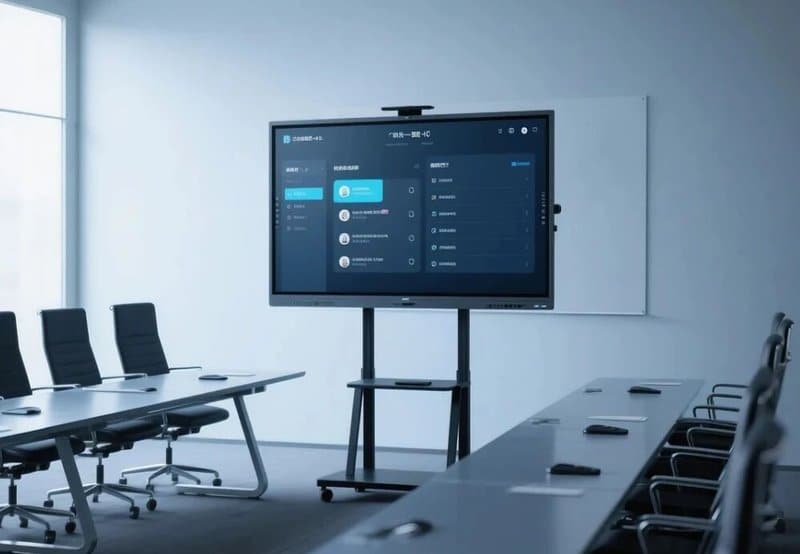
Pricing and specifications for conference all-in-one machines vary according to screen size, touch technology (infrared vs. capacitive), computing platforms (Android, Windows OPS, or dual OS), software ecosystem, and bundled AV accessories.
Basic Applications: Focus on large-screen display quality, responsive touch control, and wireless screen casting.
Daily Collaboration: Consider advanced digital whiteboarding, file saving, multi-format export, and multi-device connectivity.
Remote Video Conferencing & Unified Collaboration: Thoroughly assess video conferencing ecosystem compatibility, audio pickup algorithms, camera imaging, high-speed networking, and collaborative software features.
Given substantial hardware variations, avoid evaluating product tiers strictly by fixed price points. List core functional necessities based on actual workflows before comparing hardware specs, software support, and after-sales maintenance terms.
Critical Details to Inspect During Selection
Before finalizing equipment specifications, review the following key areas:
Touch Experience: Test touch response speed, writing latency, and multi-user touch precision.
Connectivity Compatibility: Confirm seamless connection with common laptops, mobile devices, and external video sources.
Software Ecosystem: Verify that the digital whiteboard, wireless projection, and video meeting tools meet daily operational requirements.
Port Configuration: Check that HDMI, USB, RJ45 network, and audio I/O ports satisfy everyday connectivity demands.
Maintenance & Support: Review screen cleaning guidelines, OS update policies, troubleshooting procedures, and device management tools.
Installation Feasibility: Verify wall load-bearing capacity, mount bracket specifications, power outlet placement, and cable management.
Addressing these details ensures smooth everyday operation and prevents avoidable setbacks during deployment.
5. Tips for Maximizing Conference All-in-One Display Efficiency
Prepare Materials in Advance
Organize meeting documents, presentations, and supporting files ahead of time and test file readability. For wireless casting, verify network connectivity and device compatibility prior to the meeting to eliminate last-minute troubleshooting.
Standardize Digital Whiteboard Note-Taking
During discussions, utilize distinct colors to categorize agenda topics, open issues, and action items. Highlight critical conclusions promptly and review key takeaways before adjourning to streamline subsequent documentation.
Verify the Remote Conferencing Environment Early
Before starting a video call, test network bandwidth, camera angles, microphones, and speakers to ensure clear video and crisp audio. If remote annotation or co-editing is planned, confirm software support and user permissions in advance.
Complete Post-Meeting Wrap-Up and Follow-Through
Save digital whiteboard canvases, annotated presentations, and meeting recaps immediately after the session. Define clear follow-up action items, owners, and completion deadlines in line with corporate project workflows.
If the system supports file export or cloud sharing, archive assets to designated secure directories. Handle proprietary or sensitive materials in compliance with corporate data protection policies.
6. Conclusion
The true value of a conference all-in-one display extends far beyond combining a projector, monitor, and whiteboard into a single chassis. It fundamentally streamlines the meeting lifecycle—making information display, real-time collaboration, and post-session archiving more efficient and intuitive.
By choosing appropriate screen sizes, validating compatibility, leveraging digital whiteboard and casting tools, and implementing standardized meeting workflows, enterprises can maximize the productivity of interactive flat panels across executive meetings, design reviews, cross-functional sprints, and remote communications.
ZXTLCD delivers commercial display and interactive touch display products and solutions tailored to room dimensions, interactive requirements, and audiovisual collaboration scenarios, helping organizations build modern, highly efficient meeting spaces. In summary, choosing a reliable Wireless Screen Sharing Smart Board solution enhances team engagement, streamlines video conferencing, and elevates overall meeting productivity.
Looking for customized Wireless Screen Sharing Smart Board hardware, interactive flat panels (IFPD), or OEM/ODM smart board solutions? Feel free to contact the ZXTLCD engineering team for free consultations, product specifications, and tailored volume pricing.