

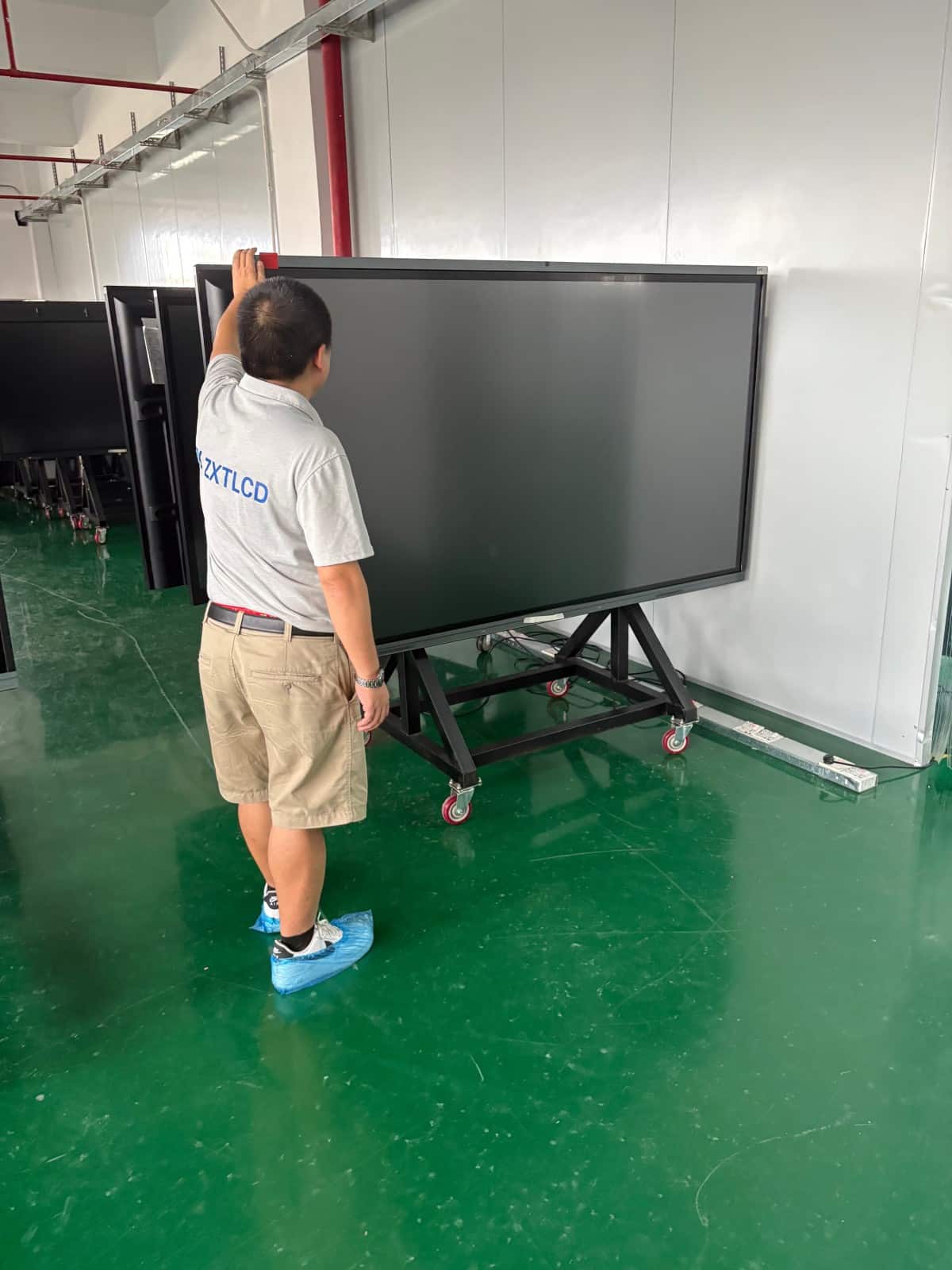

Anyone who attends corporate meetings shares a familiar frustration: the greatest delays are rarely caused by substantive discussions, but by troublesome hardware.
Wireless casting fails to connect, remote participants complain they cannot hear audio, team members struggle to navigate digital whiteboard menus, and administrative IT staff are summoned to troubleshoot. Regardless of how impressive a datasheet appears, if hardware is difficult to operate, employees quickly abandon it, reverting to snapping blurry smartphone photos of marker boards.
When sourcing conference equipment, look beyond lengthy specification sheets and evaluate real-world operational smoothness. Below are five critical operational checkpoints that can be verified immediately during an on-site trial.
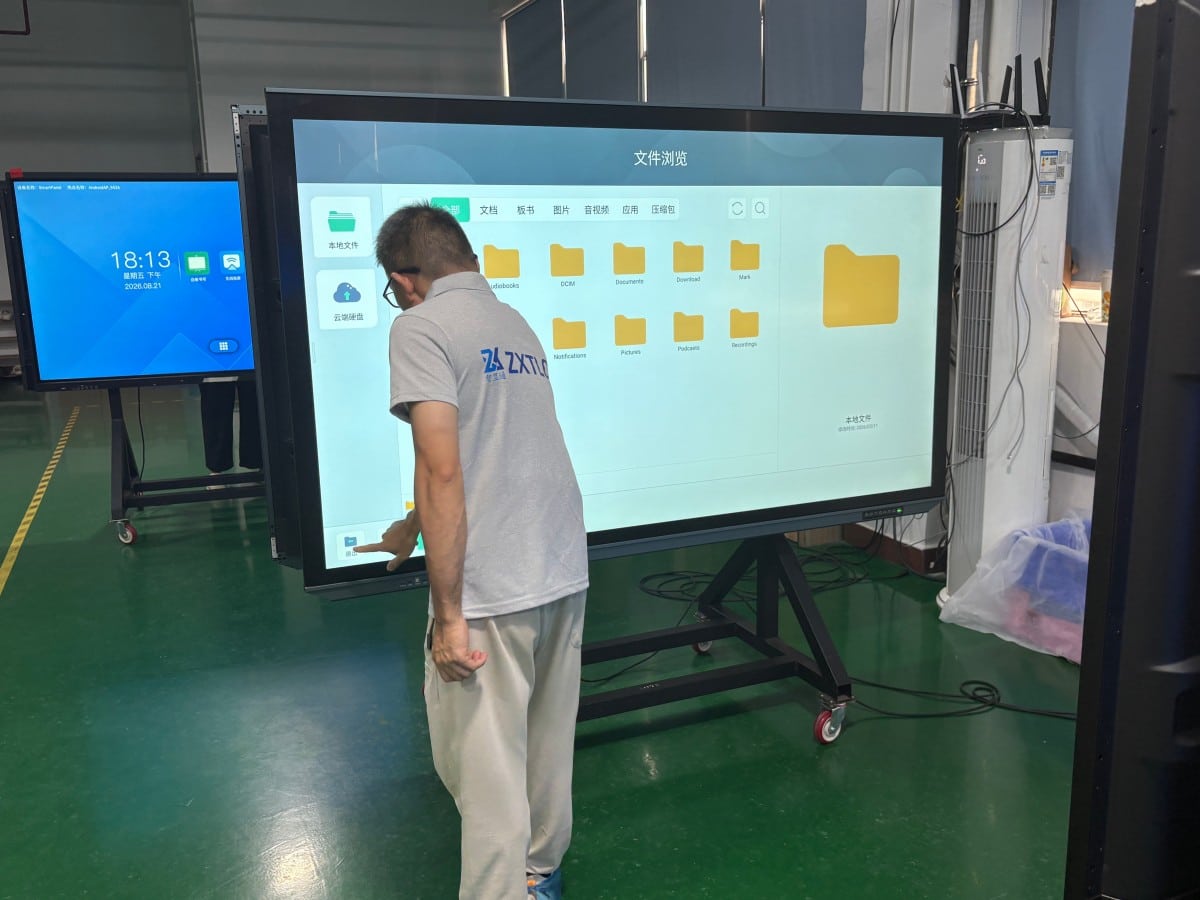
1. Boot-Up and Initial Operation: Can New Colleagues Operate It Independently?
The simplest benchmark of equipment usability is having an employee who has never seen the display walk through initial startup, file access, and wireless casting without assistance.
If they must consult technical manuals or ask colleagues for guidance, the interface architecture is flawed. The ideal operational state is clean, intuitive UI design where core meeting functions are immediately recognizable, requiring zero prior training. Usability is proven by real-world trials, not marketing brochures.
Simultaneously, observe boot-up startup speed. If a display takes minutes to initialize background services right as a high-stakes client presentation begins, frustration sets in immediately.
2. Wireless Screen Mirroring: Transmission Stability Trumps Novelty
Wireless screen casting is the most frequently utilized function in daily meetings, and the most common failure point.
During testing, do not evaluate a single laptop. Test diverse employee devices: different laptop brands running Windows and macOS, mobile smartphones, and tablets, casting across varied media formats. Observe connection steps: does connection require complicated software setups or simple hardware dongles? Does casting disconnect unexpectedly? Is video playback stutter-free with synchronized audio?
Test rapid handoffs between multiple presenters and multi-screen split-view comparisons. If the display supports touch-back laptop control, test response latency. Because wireless performance depends heavily on local enterprise Wi-Fi networks, always test casting within your actual conference room network rather than relying on vendor showroom demos.
3. Handwriting Annotation: Stroke Tracking and Tactile Responsiveness
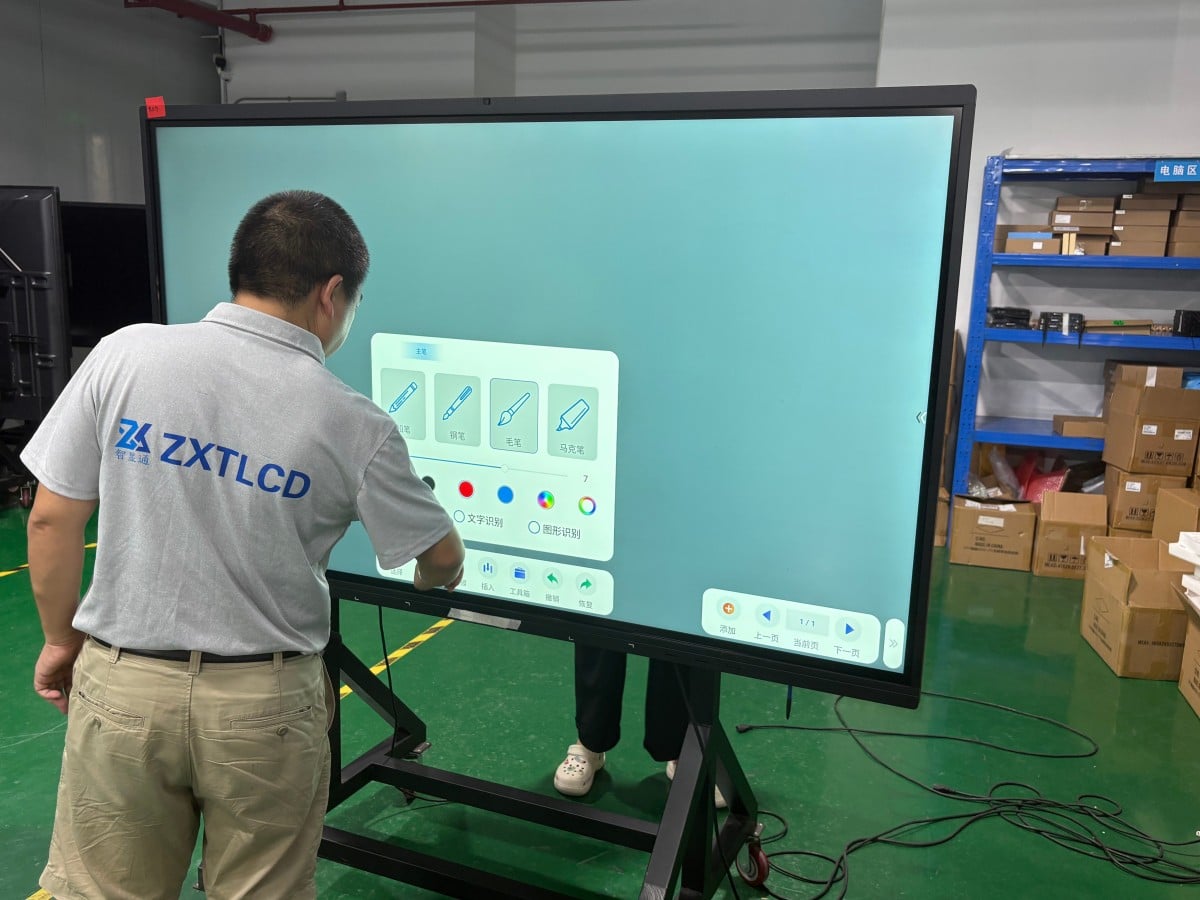
Handwriting fidelity cannot be judged from written specifications; it must be experienced firsthand.
Pick up the passive stylus and write rapid text, draw geometric shapes, and inspect tracking latency, stroke breaks, and cursor lag. Test gesture ergonomics: can you erase notes naturally using the back of your hand or palm? Is changing pen thickness and ink colors intuitive? Annotate directly over active PowerPoint decks and PDF documents, and verify smooth toggling back to original slides.
Minor stroke delays or jitter may seem tolerable initially, but quickly frustrate users during intensive meetings. Test multi-user concurrent writing to ensure tracking remains free of interference.
4. Meeting Content Archiving: Seamless Post-Meeting Distribution
In traditional meetings, attendees fill a whiteboard and spend concluding minutes snapping phone photos that suffer from optical glare and skewed angles.
Inspect how the digital whiteboard exports meeting minutes: can notes be saved as universal PDFs or images with a single touch? Does the system generate dynamic QR codes allowing attendees to scan and save vector minutes to mobile phones instantly, or dispatch files via email? Ensure files save in universal, editable formats rather than proprietary extensions readable only on that specific hardware, and verify whether future sessions can reopen saved canvases to resume editing seamlessly.
5. Remote Video Conferencing: Camera Framing and Acoustic Pickup
Video conferencing quality depends equally on hardware engineering and physical room acoustics.
Integrated cameras and microphone arrays perform well in small huddle rooms. In expansive conference rooms with dispersed seating, onboard microphones struggle with room reverberation and distance attenuation, requiring external tabletop expansion microphone pods. Evaluate acoustic noise cancellation (AEC) by having remote participants assess voice clarity firsthand.
Furthermore, verify certified software compatibility with your enterprise video platforms (Zoom, Microsoft Teams, Webex) prior to ordering.
6. Maintenance and Administrative Management: Key Concerns for IT Teams
For administrative and IT personnel responsible for meeting facilities, hardware value is measured by long-term maintenance simplicity.
Clarify maintenance workflows: Are firmware and OS updates automated over-the-air (OTA) or manual? Can IT administrators monitor and troubleshoot devices remotely? Are external cable runs clean and minimal? What optical cleaning protocols are required? What is the warranty duration, component coverage, and on-site support turnaround time?
Unified all-in-one displays eliminate external cable clutter and simplify maintenance, but no hardware is completely immune to wear; clear contractual warranty SLAs provide essential long-term protection.
Skeptical Evaluation of Marketing Superlatives
Exercise caution when marketing materials proclaim absolute claims like ‘Zero Learning Curve,’ ‘Never Stutters,’ or ‘Unconditional Disconnect-Free Mirroring.’ All digital hardware is subject to network bandwidth, software updates, and user habits. Manufacturers that transparently outline operational benchmarks and network requirements are far more trustworthy.
Frequently Asked Questions (FAQ)
How can IT buyers verify whether an interactive display is genuinely intuitive? Have an employee with no prior exposure walk through startup, opening files, wireless casting, handwriting, and saving minutes. Independent completion indicates intuitive UI design.
What are the priority functions to test during an evaluation trial? Wireless casting stability, handwriting stroke latency, QR-code minute distribution, remote microphone pickup, and boot-up speed, tested under your corporate network.
Is staff training necessary for interactive displays? Even with intuitive hardware, conducting a brief 10-minute team onboarding session covering core shortcuts significantly boosts adoption and prevents IT support calls.
Do administrative staff need deep technical expertise to maintain equipment? Day-to-day operation is simple. Initial network configuration and OPS setup should be handled by IT, backed by responsive manufacturer technical support.
Conclusion
The commercial value of conference equipment lies not in exhaustive feature checklists, but in whether employees actively enjoy using it every day. Evaluating usability with real team members, corporate devices, and live enterprise networks—complemented by clean installation and verified after-sales SLAs—ensures your conference technology delivers lasting productivity.
Explore Commercial Interactive Smart Boards & Conference Displays
If you are upgrading your conference room, training center, or collaborative workspace, explore our high-performance interactive flat panel models:
- Interactive Flat Panel with Camera for Focused Hybrid Collaboration
- 75 Inch Smart Board for Meeting Presentations and Decisions
Need a Customized Meeting Room Solution or Project Quote?
ZXTLCD delivers end-to-end interactive display engineering—from 55″ to 110″ 4K anti-glare touchscreens, integrated 4K ePTZ cameras, 8-array microphones, to dual Android/Windows OPS compute configurations.