

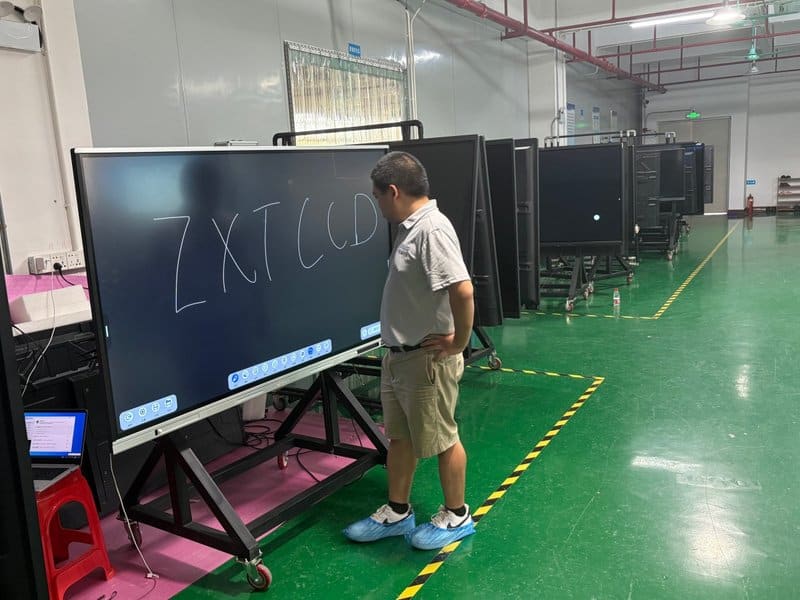

01 Routine Maintenance and Upkeep of Conference System Equipment with a Conference Room AV System Maintenance
Introduction to Conference System Equipment
Deploying a professional Conference Room AV System Maintenance provides modern collaborative spaces with an advanced digital presentation hub. Conference systems play an essential role in daily enterprise communications, visual presentations, and strategic decision-making. Regular preventative maintenance preserves optimal equipment performance, prevents unexpected meeting disruptions, and substantially extends overall hardware lifespans.
Common conference system hardware encompasses the following primary categories:
– **Projection and Display Equipment:** Projectors, projection screens, video display terminals, interactive flat panels, and commercial monitors used to present slideshows, video feeds, and digital collateral.
– **Audio Equipment:** Power amplifiers, loudspeaker arrays, and wired or wireless conference microphones used for speech reinforcement and program audio playback.
– **Lighting Systems:** Stage fixtures, room lighting, and automated dimming controls used to optimize visibility, camera illumination, and meeting atmosphere.
– **Control Systems:** Central control processors, interactive touch panels, and remote transmitters used for unified management and automation of all in-room audiovisual hardware.
Daily Operation and Handling Precautions
Operating conference equipment strictly according to manufacturer specifications reduces component wear and maintains a reliable meeting experience:
– **Projection and Display Equipment:** Maintain unhindered cooling airflow and keep exhaust vents clear of obstructions. Regularly verify image sharpness, display stability, and active video signal sync.
– **Audio Equipment:** Balance microphone gain staging, amplifier attenuation, and master speaker volume properly to avoid clipping distortion or acoustic feedback howling. Inspect audio cables regularly to prevent intermittent crackling caused by loose contacts.
– **Lighting Systems:** Prevent harsh luminaires from aiming directly into participants’ eyes. Modulate illumination levels according to meeting agendas, and service lighting ballasts and drivers according to equipment guidelines.
– **Control Systems:** Ensure operators familiarize themselves with system UI flows to prevent accidental configuration overrides. Before adjusting system parameters or updating controller firmware, verify interoperability across all linked AV peripherals.
Maintenance Cycles and Standard Procedures
Establishing a structured maintenance timetable empowers facility managers to detect emerging anomalies early. The following guidelines serve as a practical baseline, with specific intervals adjusted according to equipment manuals, duty cycles, and environmental factors:
– **Projection and Display Equipment:** Routinely clean chassis exteriors and ventilation grilles. Clean or replace dust filters per manufacturer intervals, and inspect light engines, backlight consistency, visual fidelity, and signal cable integrity. For hardware utilizing differing display architectures (LCD, OLED, LED), adhere to technology-specific maintenance requirements.
– **Audio Equipment:** Periodically inspect terminal blocks, XLR connectors, and patch cables connecting amplifiers, loudspeakers, and microphones. Ensure physical ports seat firmly and sound output remains pristine. When hum, distortion, or uneven sound levels occur, audit interconnects, power distribution, and gain parameters. Schedule professional servicing when necessary.
– **Lighting Systems:** Periodically inspect luminaires, sockets, switches, and electrical connections, replacing failed or flickering bulbs/fixtures immediately. Always disconnect upstream power before swapping components, observing all electrical safety standards.
– **Control Systems:** Routinely test central processors, touch panels, wireless remotes, and control bus cabling to verify end-to-end automation execution. Execute firmware updates only after verifying device compatibility and creating verified system configuration backups.
Common Issues and Remediation Protocols
– **Displays or Projectors Failing to Render Video:**
Verify that primary AC power is supplied, confirm video interconnects (HDMI, DP, USB-C) are securely attached, and ensure the correct input source channel is active. If video remains absent, inspect the host graphics card output and display status indicators.
– **Audio Distortion or Feedback Howling:**
Check microphone sensitivity and loudspeaker volume levels. Verify cable shielding and physical connections, adjusting pre-amplifier gain and DSP parametric EQ curves appropriately. If issues persist, test downstream hardware piece by piece.
– **Lighting Fixtures Not Illuminating or Flickering:**
Inspect power supply circuits, physical switches, control lines, and lamp ballasts. If faults reside within internal power supply electronics or dimming racks, arrange inspection by qualified electrical technicians.
– **Control System Unresponsive to Commands:**
Inspect network and serial communication lines between the central processor and touch controller. Confirm power delivery to control transceivers, check remote control batteries, and audit software port configurations. If a hard reboot is necessary, perform a graceful shutdown of active devices before power cycling the main processor.
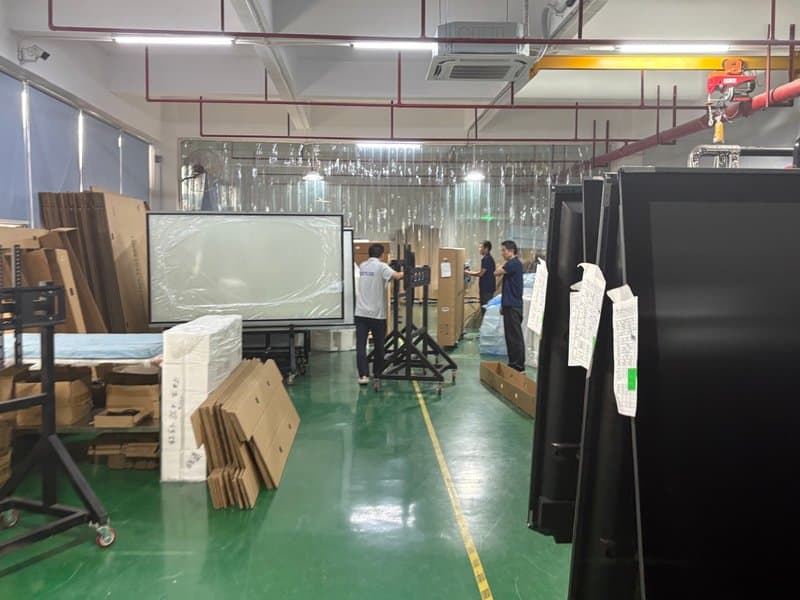
02 Fault Diagnosis and Systematic Troubleshooting for Conference Systems
Fault Categorization and Root Causes
Conference spaces rely on deeply interconnected hardware subsystems. A failure in a single component can paralyze the entire meeting. Categorizing faults by symptom rapidly narrows down troubleshooting scopes:
– **Audio Subsystem Faults:** Typical symptoms include silent microphones, audio clipping, excessive ground hum/buzz, or intermittent volume drops. Common root causes include component aging, oxidized or loose cable jacks, electrical grounding loops, improper gain staging, or RF interference.
– **Video Subsystem Faults:** Projectors, PTZ cameras, and display panels may exhibit blurry images, chromatic aberrations, display flickering, or complete signal drops. Common causes include mismatched input selection, loose video cables, incorrect EDID/resolution handshakes, or cable distance degradation.
– **Control Subsystem Faults:** Central automation processors, touch screens, and handheld remotes may freeze, respond sluggishly, or fail to trigger programmed macros. Causes typically involve disconnected communication buses, power instability, software driver errors, or damaged RS-232/IP control wiring.
Three-Step Diagnostic Workflow
– **Step 1: Preliminary Assessment**
Record the exact time of failure, observable symptoms, and specifically affected devices. Determine whether the glitch is isolated to an individual microphone or video input, or whether it impacts the entire system. Logging status LEDs and onscreen error codes provides critical context for scoping the failure.
– **Step 2: Methodical Isolation**
Guided by preliminary assessments, inspect electrical power, interconnect cables, chassis ports, input channels, and software configurations in logical sequence. Test one variable at a time to prevent confounding the diagnosis with multiple simultaneous adjustments.
– **Step 3: Calibration and Verification**
Once connections and configurations are verified, calibrate audio/video levels according to operating guidelines. Re-test audio, video, and automation functions comprehensively to ensure full resolution and verify overall system stability under load.
If the failure traces to internal PCB components, high-voltage power supplies, or proprietary controller firmware, halt unauthorized disassembly and engage certified technical service engineers.
Troubleshooting Best Practices and Real-World Case Study
Troubleshooting Best Practices
Effective diagnostic workflows demand vigilance not only toward blatant failures, but also subtle operating anomalies—such as blinking warning LEDs, faint acoustic hums, frame tearing, or sluggish touch UI response.
Always troubleshoot from simple to complex: verify power and cable integrity first, review software settings and input selection second, and investigate complex hardware or firmware failures last. Keeping detailed maintenance logs significantly accelerates future diagnostic efforts.
Practical Case Study: Conference Microphone Fails to Output Sound
When a microphone abruptly drops out during an ongoing session, execute the following steps:
1. Check the physical microphone power switch and battery level to confirm it is fully energized.
2. Verify wireless RF link status and receiver pairing, or inspect physical cable seating for wired mics.
3. Confirm that the wireless receiver, line-level patch cables, and audio DSP/amplifier are powered and interconnected correctly.
4. Inspect DSP mixer channel routing, software mute statuses, and channel gain levels.
5. Test the audio chain sequentially to verify sound restoration.
If audio remains absent after completing these steps, substitute a known-good microphone or cable into the signal chain to isolate whether the defect lies in the microphone transmitter, the receiver, or the DSP mixer input stage.
Preventative Protocols and Proactive Recommendations
Scheduled Inspections and Preventative Upkeep
Formulate a routine maintenance schedule tailored to equipment categories and meeting cadence. Periodically inspect cable integrity, power delivery, display color uniformity, acoustic coverage, and automation controls. Promptly resolve loose connectors, abnormal acoustic noise, component overheating, or intermittent glitches before they disrupt critical executive meetings.
Standardized Operational Workflows
Establish clear standard operating procedures (SOP) for room technology and provide training for designated administrative operators. Startup sequences, power-downs, cable connections, and UI adjustments must follow documented rules to prevent user-error-induced failures.
Redundancy and Emergency Readiness
Prior to high-stakes executive meetings, inspect audiovisual hardware, room controllers, and network connections thoroughly, keeping backup copies of presentations and vital files readily accessible. Depending on meeting criticality, stage spare video patch cables, backup wireless microphones, and alternate laptops in the room to allow instant failover if a primary device falters.
Selecting the Right Commercial Conference Displays
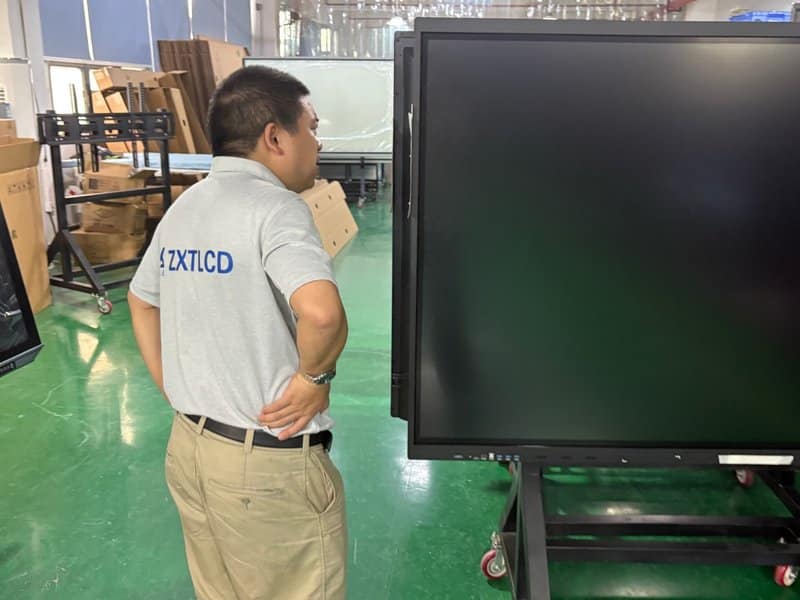
The long-term reliability of conference display hardware depends not only on routine maintenance, but also on hardware architecture, environmental resilience, and mounting engineering. ZXTLCD provides a comprehensive suite of commercial and interactive conference displays, delivering hardware tailored to spatial dimensions, visual clarity requirements, and unified system integration goals.
By combining disciplined operation, systematic maintenance routines, and comprehensive contingency planning, enterprises can minimize AV downtime, foster seamless communication, and maximize the long-term return on their conference infrastructure investments. In summary, choosing a reliable Conference Room AV System Maintenance solution enhances team engagement, streamlines video conferencing, and elevates overall meeting productivity.
Looking for customized Conference Room AV System Maintenance hardware, interactive flat panels (IFPD), or OEM/ODM smart board solutions? Feel free to contact the ZXTLCD engineering team for free consultations, product specifications, and tailored volume pricing.