

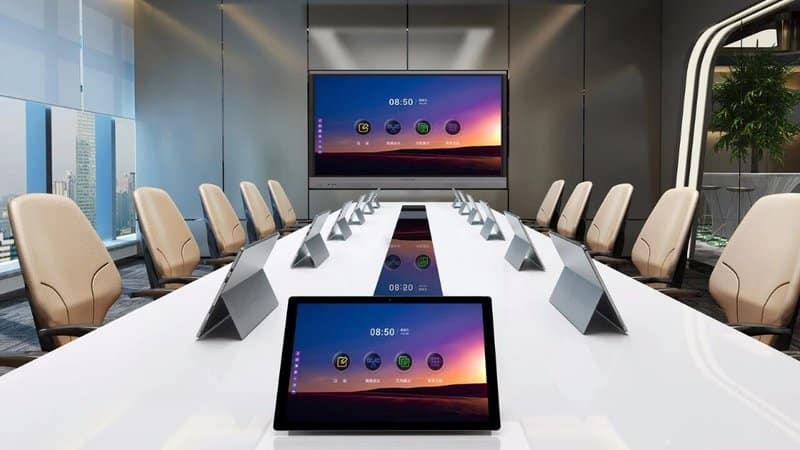

Deploying a professional All-in-One Interactive Whiteboard Features provides modern collaborative spaces with an advanced digital presentation hub. In daily enterprise operations, meetings serve as the primary vehicle for information sharing, business deliberations, and project collaboration. Traditional meetings typically require projectors, motorized screens, physical whiteboards, marker pens, and printed paper handouts. During sessions, presenters must juggle slide presentations, physical blackboard notes, live edits, and manual minutes taking. Fragmented across disjointed tools and hardware, these steps inflate pre-meeting preparation time and disrupt the natural momentum of discussions.
With advances in commercial display panels and interactive touch technologies, intelligent conference all-in-one machines (interactive flat panels) are increasingly deployed across corporate conference rooms, training centers, and collaborative spaces. By integrating large-format visual display, touch writing, document presentation, and multi-device connectivity into a single terminal, these systems streamline meeting operations and provide a centralized platform for daily communication and teamwork.
All-in-One Interactive Whiteboard Features: What Is a Smart Conference All-in-One Display?
Commonly referred to as a conference flat panel or interactive flat panel display (IFPD), a smart conference all-in-one machine is an integrated commercial display device engineered specifically for collaborative meeting environments. Unlike traditional monitors that solely output video signals, an interactive conference machine combines responsive touch control, digital whiteboards, document presentation, and diverse signal input routing. Select models also incorporate wireless screen casting, video conferencing platforms, and enterprise office applications, adapting to varied meeting scenarios based on hardware configuration.
In practice, participants can present slide decks, review financial spreadsheets, annotate key metrics, and modify drawings directly on screen via touch gestures. When cross-regional communication is needed, users can connect integrated or external cameras, microphone arrays, and compatible UC video conferencing software.
Interactive conference displays are utilized across corporate boardrooms, agile war rooms, educational lecture halls, medical training centers, and interactive briefing spaces. Concrete capabilities and application scopes depend on panel dimensions, operating systems, I/O ports, and software suites.
Core Capabilities and Advantages of Smart Conference All-in-One Displays
1. Interactive Touch Writing and Digital Whiteboard
Traditional meetings rely on physical whiteboards to jot down discussion notes, requiring manual wiping and re-writing to make edits, with no straightforward way to archive content once finished. The digital whiteboard functionality of an interactive conference display centralizes writing, sketching, and editing directly on the high-definition screen.
Attendees can write, draw diagrams, and annotate slides using fingers or compatible passive/active styluses. When reviewing business plans, auditing financial models, or mapping operational workflows, presenters can mark up slides directly on screen, helping attendees grasp key takeaways intuitively.
Select models support multi-touch writing, gesture erasing, multi-page canvas expansion, and instant file saving. Actual writing latency and pen feel depend on touch technology (infrared vs. optical bonding capacitive), glass surface treatments, and whiteboard algorithms; evaluate these against daily writing habits during procurement.
2. Wireless Screen Casting and Multi-Device Connectivity
Meetings constantly require sharing presentations, spreadsheets, or images stored on laptops, tablets, or smartphones. Traditional cabling requires hunting for video dongles, switching monitor input channels, or manually copying files to a shared USB drive.
A smart conference display with wireless screen casting uses compatible protocols or dedicated client software to project displays from mobile devices and laptops onto the large screen wirelessly. This enables attendees to share slides, photos, web portals, and project assets effortlessly.
Furthermore, devices feature physical HDMI, USB, and full-function USB Type-C ports, supporting high-bandwidth wired video and touch back-channel transmission. Before use, verify interface specifications, laptop video output capabilities, casting protocols, and OS compatibility. Whether wireless casting requires devices to reside on the same Wi-Fi subnet depends on the casting architecture employed.
For meetings handling confidential enterprise data, configure network access controls appropriately to prevent unauthorized device pairing or asset leakage.
3. Meeting Content Archiving and Instant Distribution
Conclusions, action items, and revised proposals generated during meetings represent valuable corporate assets. Relying exclusively on manual note-taking forces participants to divide attention between active listening and frantic typing.
Equipped with dedicated collaboration software, smart conference machines can save digital whiteboard canvases, annotated slide decks, and meeting recaps locally or to the cloud. Select systems generate dynamic QR codes allowing participants to scan and download meeting notes directly onto smartphones, or distribute files via email and network shares.
Note that QR code distribution, cloud export, and automated meeting archiving vary across software configurations and OS versions. For sessions containing proprietary commercial information, establish strict user access permissions and verify distribution channels prior to sharing.
4. Remote Video Conferencing and Audiovisual Collaboration
Cross-regional collaboration, client pitches, and online training demand concurrent video streaming, crystal-clear voice pickup, and synchronized screen sharing. An interactive conference display serves as a unified visual and interactive hub for remote meetings. Select models incorporate built-in optical cameras, microphone arrays, and front-firing speakers, while others support external USB/HDMI AV peripherals.
Paired with certified video conferencing platforms, teams can conduct face-to-face video calls, share presentation decks, and annotate shared digital whiteboards simultaneously. For larger conference rooms requiring wider coverage, evaluate microphone pickup radii, speaker acoustic wattage, and camera optical fields of view against room dimensions and acoustics.
Ensure video conferencing software matches the display operating system, firmware version, network bandwidth, and peripheral drivers to prevent connection drops or audio-video latency during live calls.
5. Dual Operating Systems and Office Application Support
Different meeting environments impose distinct software requirements. Some sessions only require basic slide presentations, touch writing, and simple casting; others require running specialized Windows software, ERP clients, or enterprise video meeting applications.
Certain smart conference displays run Android OS, others incorporate modular Windows OPS computers, and high-end configurations feature dual-OS seamless switching. Operating systems differ in app installation freedom, file management, peripheral drivers, and user ergonomics; select configurations that align with organizational IT environments.
Verify onboard Wi-Fi specs, LAN speeds, and app sideloading permissions for specific models. For environments dependent on proprietary enterprise software or corporate security agents, validate software compatibility, account permissions, and firewall policies prior to widespread deployment.
Standard Operational Workflow for Smart Conference All-in-One Displays
Adhering to a standardized workflow ensures meetings run smoothly and eliminates time wasted on last-minute hardware debugging:
– Step 1: Pre-Meeting Inspection. Confirm power supply, network connectivity, video inputs, and display status prior to the meeting. For video calls, test the camera feed, microphone pickup, speakers, and conference software beforehand.
– Step 2: Select Presentation Mode. Choose wired HDMI/Type-C connections, wireless screen casting, or onboard USB/cloud file access depending on source media, verifying cable and protocol compatibility.
– Step 3: Interactive Touch Collaboration. During discussions, utilize the digital whiteboard to capture brainstorming notes, highlight key metrics, adjust workflow diagrams, and enrich collaborative dialogue.
– Step 4: Archive Meeting Assets. Save whiteboard notes, annotated slides, and session recaps using onboard tools. Distribute files via supported QR code scanning, email, or network directories under corporate security guidelines.
– Step 5: Post-Meeting Wrap-Up. Log out of personal software accounts and cloud drives, purge temporary meeting files per company policy, and restore the display to its default state ready for the next session.
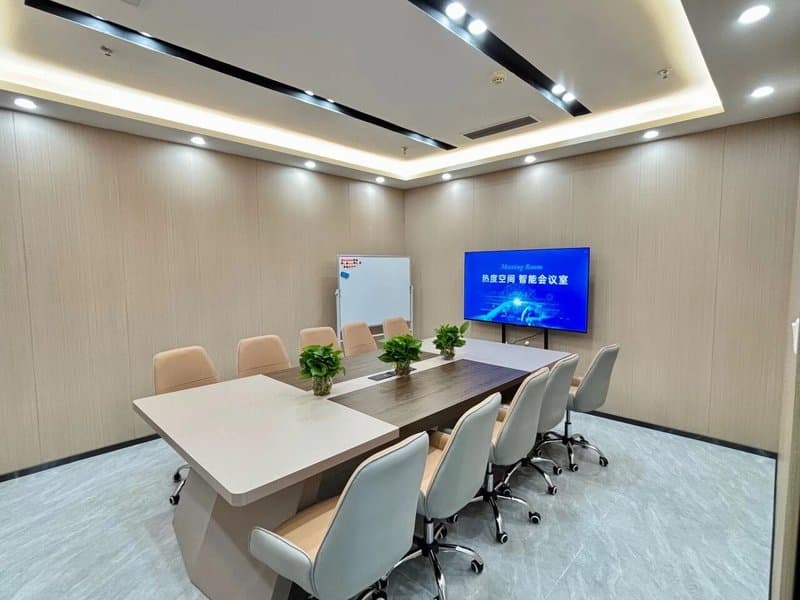
How to Choose the Right Smart Conference All-in-One Display
Equipment configurations should match actual collaborative workflows rather than pursuing superficial feature counts. Prioritize the following factors during evaluation:
– Screen Size & Resolution: Select display dimensions (55″ to 98″+) and 4K UHD resolutions based on room floor area, viewing distance, and content density to ensure text, spreadsheets, and diagrams remain razor-sharp.
– Touch Performance: Evaluate touch latency, writing smoothness, multi-touch accuracy, and whiteboard software capabilities based on writing frequency and group collaboration needs.
– Connectivity & I/O: Verify physical ports (HDMI, Type-C, USB), wireless casting protocols, network ports, and peripheral compatibility with existing laptops and office hardware.
– Audiovisual Capabilities: Match integrated or external cameras, microphone pickup arrays, and acoustic speakers to room dimensions and remote collaboration demands.
– OS & Software Ecosystem: Ensure operating systems (Android, Windows OPS, or dual OS) natively support core corporate productivity apps and certified UC conferencing tools.
– Installation & Servicing: Check wall load-bearing capacities, mobile cart stability, power outlets, thermal airflow clearance, and vendor warranty and technical support terms.
ZXTLCD Conference Collaboration Solutions
ZXTLCD provides commercial display and conference collaboration products and comprehensive solutions. By tailoring display specifications, interactive features, software ecosystems, and peripheral connections to meeting room environments and usage frequencies, ZXTLCD helps enterprises maximize the value of interactive visual technology—upgrading presentation quality, active discussions, and remote teamwork.
Conclusion
Smart conference all-in-one displays consolidate large-format visual display, touch writing, document presentation, and multi-device connectivity into a single terminal, eliminating the fragmented friction of traditional meeting setups. In spaces requiring frequent proposal discussions, training, and remote teamwork, properly configured interactive flat panels make information sharing intuitive and enhance meeting productivity.
Real-world success hinges on matching equipment hardware, software compatibility, network reliability, and user habits. Clearly defining meeting requirements before selecting screen sizes, interactive capabilities, and AV configurations ensures organizations unlock the full potential of interactive displays in modern smart workspaces. In summary, choosing a reliable All-in-One Interactive Whiteboard Features solution enhances team engagement, streamlines video conferencing, and elevates overall meeting productivity.
Looking for customized All-in-One Interactive Whiteboard Features hardware, interactive flat panels (IFPD), or OEM/ODM smart board solutions? Feel free to contact the ZXTLCD engineering team for free consultations, product specifications, and tailored volume pricing.