

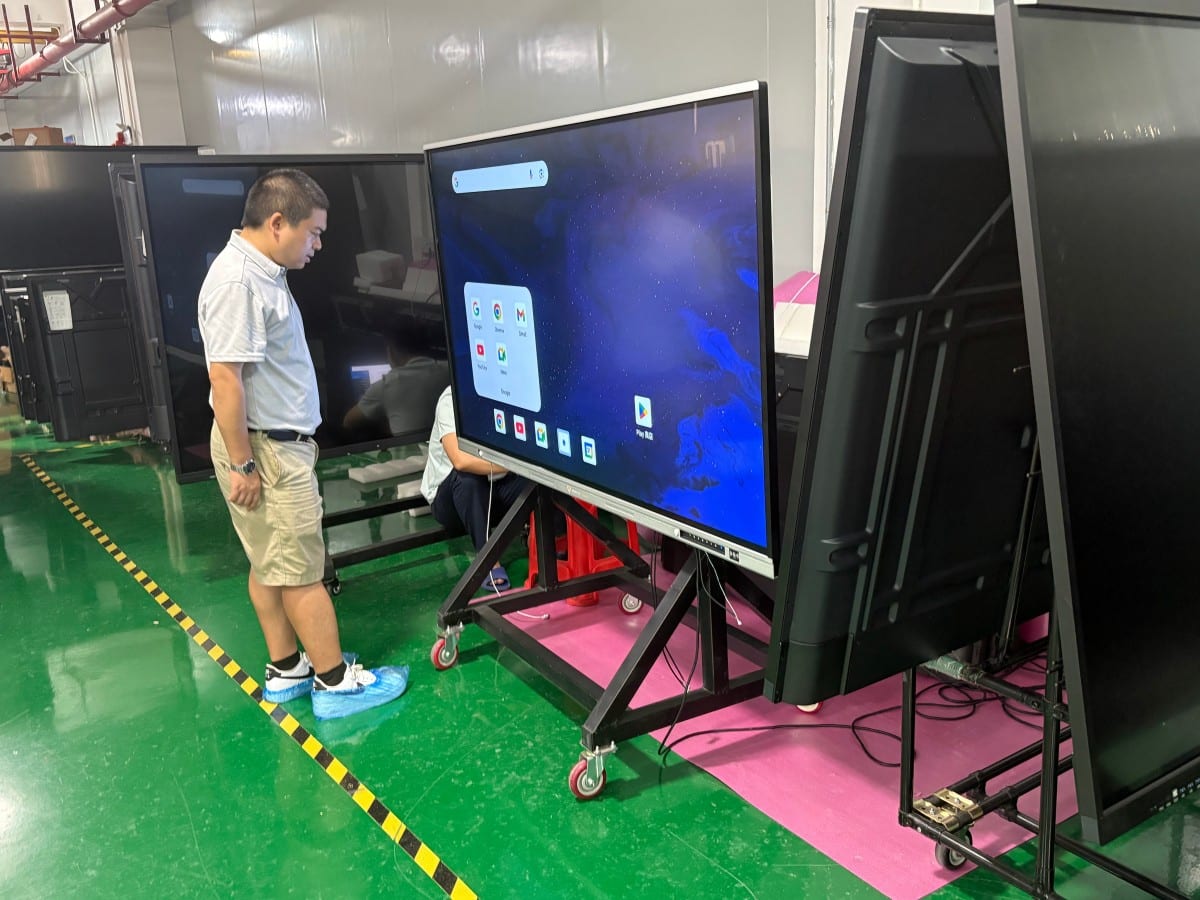

When sourcing meeting room hardware, buyers naturally focus on technical specifications: screen diagonal, 4K resolution, touch points, and camera clarity. Yet in real-world day-to-day operation, user satisfaction is dictated far more by physical installation quality than datasheet numbers.
A common corporate frustration: an expensive high-spec interactive display is procured, but upon installation, power cords trail haphazardly across the floor, wall sockets sit meters away, the screen is mounted too high causing neck strain, and remote video call participants complain they cannot hear speakers in the room. These frustrations stem not from hardware defects, but from flawed installation planning.
1. Wall Substrate Assessment: Wall Construction Dictates Mounting Methods
Wall mounting is the cleanest installation format, but not every wall can directly support large commercial hardware.
Solid concrete masonry and reinforced brick walls offer excellent load-bearing capacity, supporting heavy-gauge expansion anchor brackets securely. In contrast, hollow drywall partitions with light-gauge steel studs cannot support heavy commercial displays via standard expansion anchors; mounting requires securing structural wooden backing plates inside the wall cavity or fastening directly into vertical steel studs. Fragile glass partitions cannot be wall-mounted and require mobile rolling floor carts or freestanding floor-to-ceiling architectural pylons.
Physical display weight must be calculated rigorously. Large-format interactive panels (65 to 86+ inches) weigh between 40 and 80+ kilograms. Ensure mounting brackets, wall fasteners, and structural walls possess verified safety margins. A loose or falling display represents a severe structural safety hazard.
2. Pre-Planning Conduit Pathways: Avoid Trailing Cables Post-Installation
Many meeting rooms discover post-installation that power sockets sit three meters away across walking paths, leaving power cords, HDMI cables, audio leads, and network cables exposed on the floor—creating an unsightly, hazardous trip hazard.
Eliminating cable clutter requires pre-planning conduit pathways prior to hanging the display. Position dedicated AC power outlets, RJ45 network jacks, and audio ports directly behind the display footprint. Route video cables through concealed in-wall PVC conduits. In newly renovated conference rooms, pre-burying 50mm wall conduits before closing drywall saves immense labor.
Confirm standard interface requirements in advance: HDMI, USB Touch, Type-C, and LAN drops. Ensure cables possess generous length to allow comfortable servicing without strain on ports.
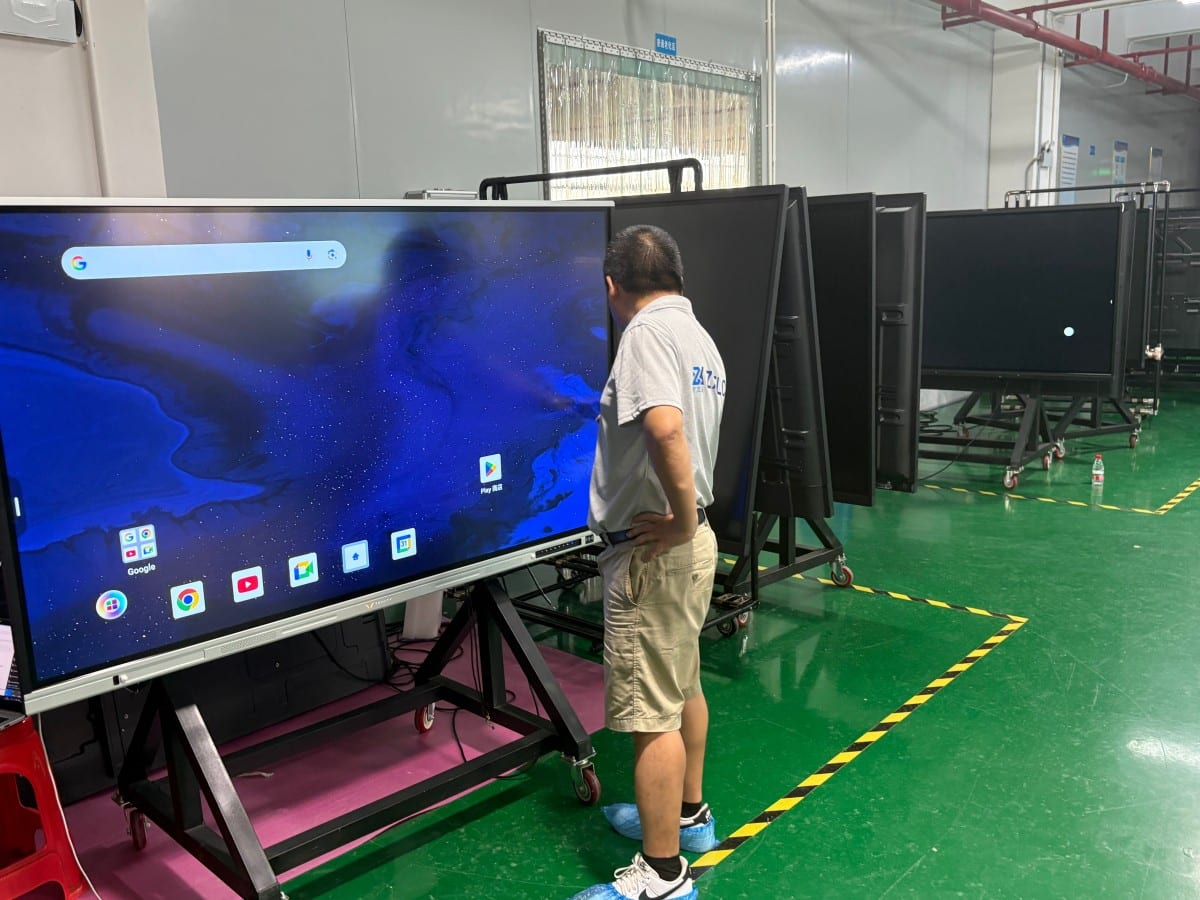
3. Ergonomic Height and Sightlines: Eye-Level Seating Over Straining Upward
Mounting height should follow human ergonomics rather than arbitrary aesthetic guesses. In corporate conference rooms, attendees sit around a conference table; mounting screens too high forces attendees into uncomfortable neck extension over long meetings. Conversely, if meetings involve standing interactive whiteboard reviews, heights must accommodate reach.
Standard practice positions the bottom bezel of the screen approximately 85 to 95 cm above finished floor level, aligning the screen center with seated eye level. Have team members sit and stand in the room to evaluate sightlines before drilling. Verify that participants in the closest and farthest seats view content comfortably without optical glare from ceiling troffers or unshaded windows.
4. Video Conferencing Essentials: Acoustic Microphone Pickup and Camera Angles
Remote video collaboration quality depends equally on visual optics and acoustic clarity. Many buyers focus on screen size while neglecting microphone pickup boundaries.
Integrated beamforming microphone arrays perform admirably in small huddle spaces. In expansive boardrooms where participants sit dispersed, onboard microphones struggle with room reverberation and distance attenuation. Plan for external tabletop expansion microphones or ceiling beamforming arrays matched to room acoustic dimensions.
Camera positioning is equally critical: cameras should frame attendees comfortably, avoiding extreme low angles or pointing directly into bright window backlighting. Conduct live video call trials from various seating positions post-installation to fine-tune camera pan-tilt-zoom (PTZ) angles and audio gain.
5. Preserving Thermal Dissipation Clearances and Servicing Access
Commercial displays generate operational heat over continuous multi-hour meetings. Ensure the chassis maintains adequate convective airflow clearance, never enclosing the display inside tight, unventilated millwork cabinets.
Furthermore, plan for future servicing accessibility: brackets should provide front-service tilt or sufficient hand clearance to allow technicians to reach rear I/O ports and cable connections without requiring complete unit de-installation.
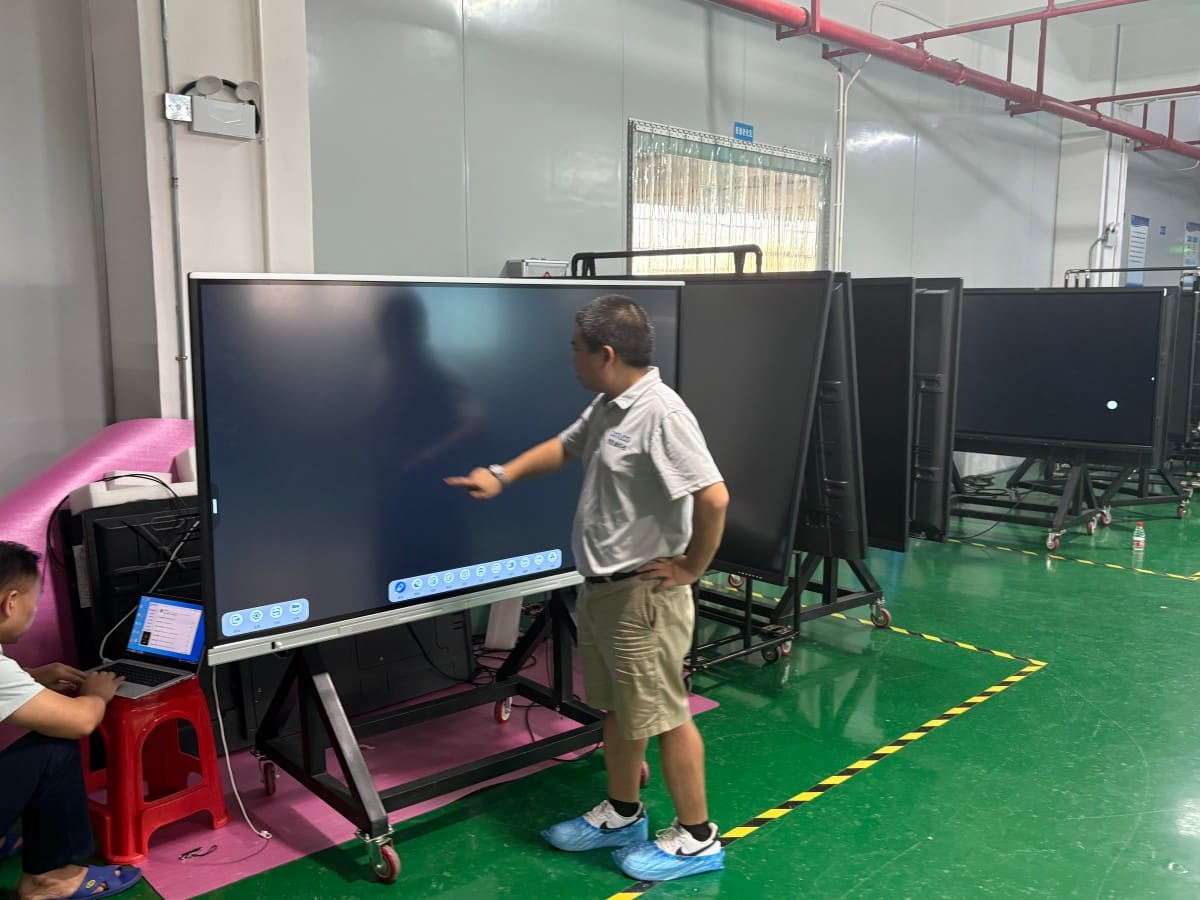
Pre-Installation Site Survey Checklist
Prior to scheduling installation, conduct a structured site survey to confirm: structural wall substrate material and load capacity; precise location of AC power outlets and network drops; in-wall conduit pathways; target mounting height and sightlines; room dimensions, table layout, and microphone pickup requirements; ambient window lighting and optical anti-glare conditions; and primary user workflow expectations.
A brief 15-minute pre-installation survey prevents costly rework. Choosing the right hardware is only the first step; professional installation unlocks its true collaborative potential.
Frequently Asked Questions (FAQ)
Do conference interactive displays and educational smart panels share identical installation methods? Their mounting concepts are similar (wall brackets or mobile carts), but physical weights, VESA hole patterns, and interface ports vary; always consult manufacturer mechanical drawings.
Is a single all-in-one display sufficient for a large conference room? For expansive rooms, a single display may suffice visually, but audio acoustics demand external tabletop expansion microphones and professional sound reinforcement so all participants hear and speak clearly.
Can cabling conduits be added after interior wall finishing? Yes, via external surface-mounted cable raceways, though pre-burying in-wall conduits during renovation yields a far cleaner, professional corporate appearance.
Can facility staff install large interactive displays independently? Small-to-medium displays on mobile carts can be assembled by staff, but large-format wall mounting (65–86+ inches) involves heavy structural loads and electrical safety that certified technicians should execute.
Conclusion
Whether deploying corporate conference panels, smart interactive displays, or educational touchscreens, sound installation fundamentals remain universal: survey the room first, engineer wall support and conduits in advance, calibrate ergonomic mounting heights to human sightlines, optimize video call acoustics, and preserve servicing access.
ZXTLCD specializes in commercial-grade visual display engineering and manufacturing. If your enterprise conference rooms or training classrooms require display modernization, share your room dimensions, collaboration scenarios, and hardware requirements with our team to evaluate tailored solutions.
Explore Commercial Interactive Smart Boards & Conference Displays
If you are upgrading your conference room, training center, or collaborative workspace, explore our high-performance interactive flat panel models:
- 75 Inch Smart Board for Meeting Presentations and Decisions
- 86 Inch Interactive Display Built Around the Complete Meeting Flow
Need a Customized Meeting Room Solution or Project Quote?
ZXTLCD delivers end-to-end interactive display engineering—from 55″ to 110″ 4K anti-glare touchscreens, integrated 4K ePTZ cameras, 8-array microphones, to dual Android/Windows OPS compute configurations.