

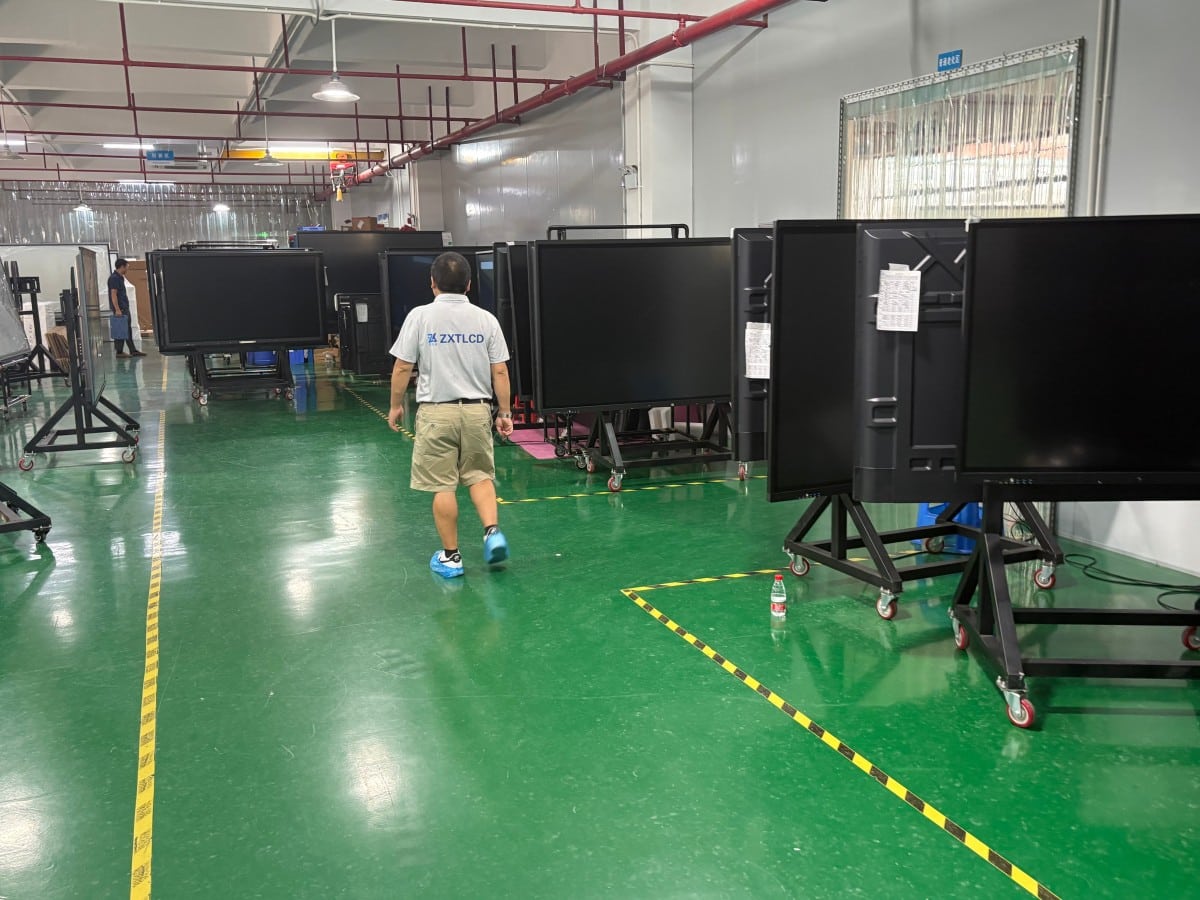

Many enterprises follow the exact same flawed path when purchasing conference interactive displays: inquiring about price first, checking screen size second, getting overwhelmed by technical datasheets, and finally placing orders based on intuition. Only after installation do frustrating issues surface: text is unreadable from the back row, pen writing lags noticeably, wireless screen casting disconnects intermittently, and staff quickly abandon the screen in favor of old habits.
Selecting the right conference all-in-one display requires no mystical guesswork. Following a structured decision framework avoids common pitfalls and ensures a sound commercial investment.
Step 1: Determine Diagonal Size First — Avoid Blindly Chasing Size
Screen diagonal size is the foremost parameter to define, and the most common source of procurement missteps.
Under-sizing forces participants in the back row to squint at spreadsheets or walk up to the screen during meetings. Over-sizing in a compact huddle room forces nearby attendees to crane their necks upward, makes upper screen corners unreachable for touch annotation, and wastes capital budget.
The practical metric is room dimensions and distance to the farthest participant. Standard industry benchmarks suggest: 55 to 65 inches for small huddle rooms (under 15 m² / 5–8 people); 75 to 86 inches for medium conference rooms (15–30 m² / 10–20 people); and 98+ inches or dual-screen setups for large boardrooms (over 30 m²). The ultimate benchmark is: text and financial spreadsheet numbers must be effortlessly legible from the farthest seat. Measure sightline distances with a tape measure or request vendor sample demonstrations.
Mounting height must also position the vertical screen center at seated eye level for comfortable viewing.
Step 2: Test Touch Accuracy and Handwriting Latency Firsthand
The defining user experience of an interactive display centers on touch accuracy and handwriting fluidity. Datasheet claims regarding touch points and latency milliseconds serve only as baseline references; authentic performance must be evaluated in person.
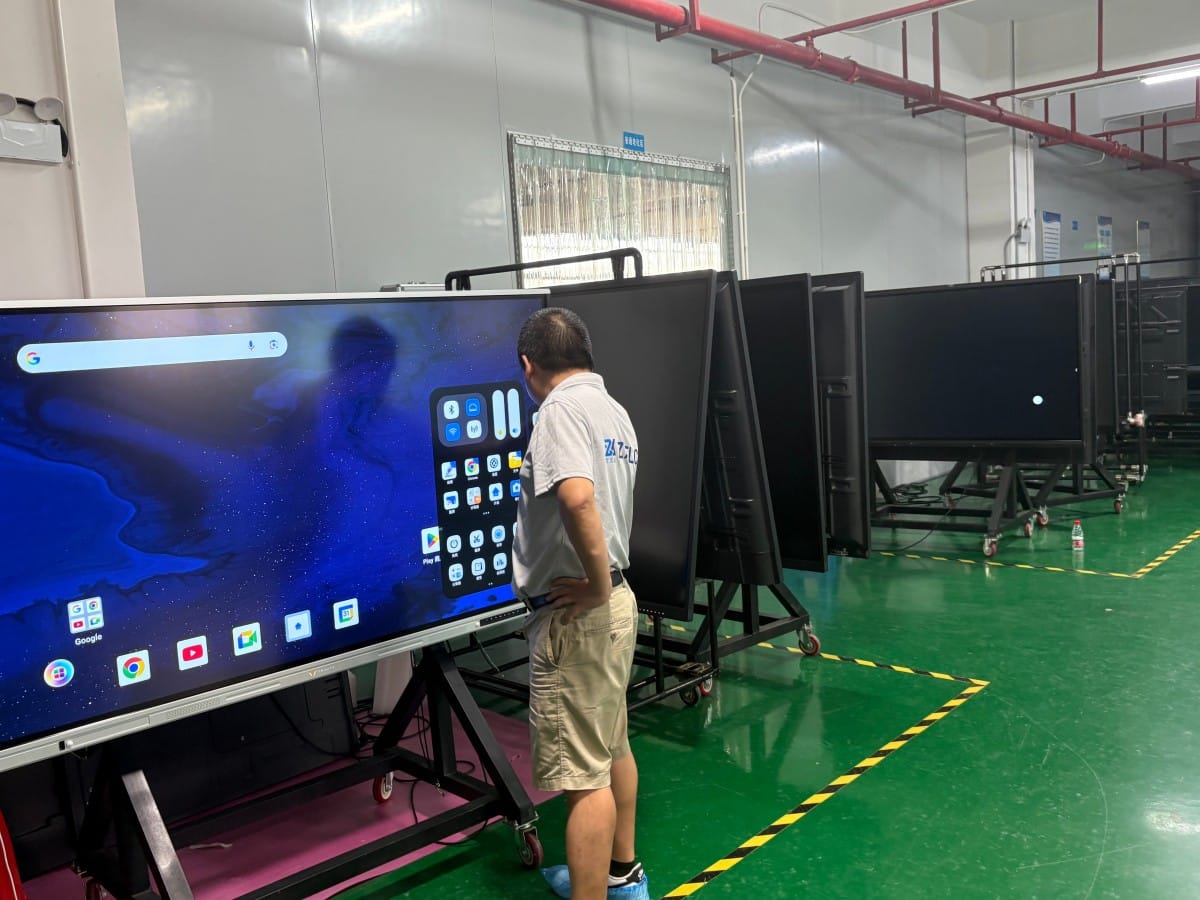
Write rapid sentences and sketch fine diagrams using the passive stylus to check for stroke breaks, cursor drag, or tactile lag. Test palm rejection and hand-swipe erasing gestures to ensure smooth, natural interactions. If team members collaborate concurrently, have two or three people write simultaneously to verify that touch tracking remains free of interference.
Whether the panel utilizes advanced Infrared (IR) touch or Zero-Gap Capacitive (P-Cap) bonding, focus on practical writing comfort under your room’s real-world lighting conditions.
Step 3: Evaluate Display Optics — Legibility Trumps Superficial Glamour
Modern commercial interactive displays feature native 4K UHD (3840×2160) resolution as standard, rendering dense CAD schematics, typography, and spreadsheets with crisp fidelity. However, optical performance must be evaluated in your specific physical room environment.
Pay close attention to surface reflection: if your conference room features large exterior windows, unshaded daylight can wash out panels lacking proper optical treatments. Prioritize anti-glare (AG) tempered safety glass and optical bonding to diffuse specular reflections. Verify ultra-wide 178-degree viewing angles to ensure colleagues seated along side tables experience zero color shifting or contrast wash-out.
Step 4: Operating System and Compute Performance — Preventing System Lag
A conference all-in-one display frequently juggles demanding concurrent tasks: 4K wireless casting, smooth vector whiteboard annotation, and intensive remote video call decoding. Underpowered internal hardware triggers severe lag, frame drops, or system crashes.
Architecturally, systems offer standalone Android or dual-system Android + Windows (via OPS slot-in PC modules). Android provides an instant-on, lightweight interface ideal for digital whiteboards and wireless casting. If your organization relies on enterprise Windows applications, complex Office macros, or proprietary software, an integrated Windows OPS computer module is essential. Prioritize smooth real-world multitasking over paper benchmark scores.
Step 5: Wireless Screen Casting — Stability Trumps Fancy Gimmicks
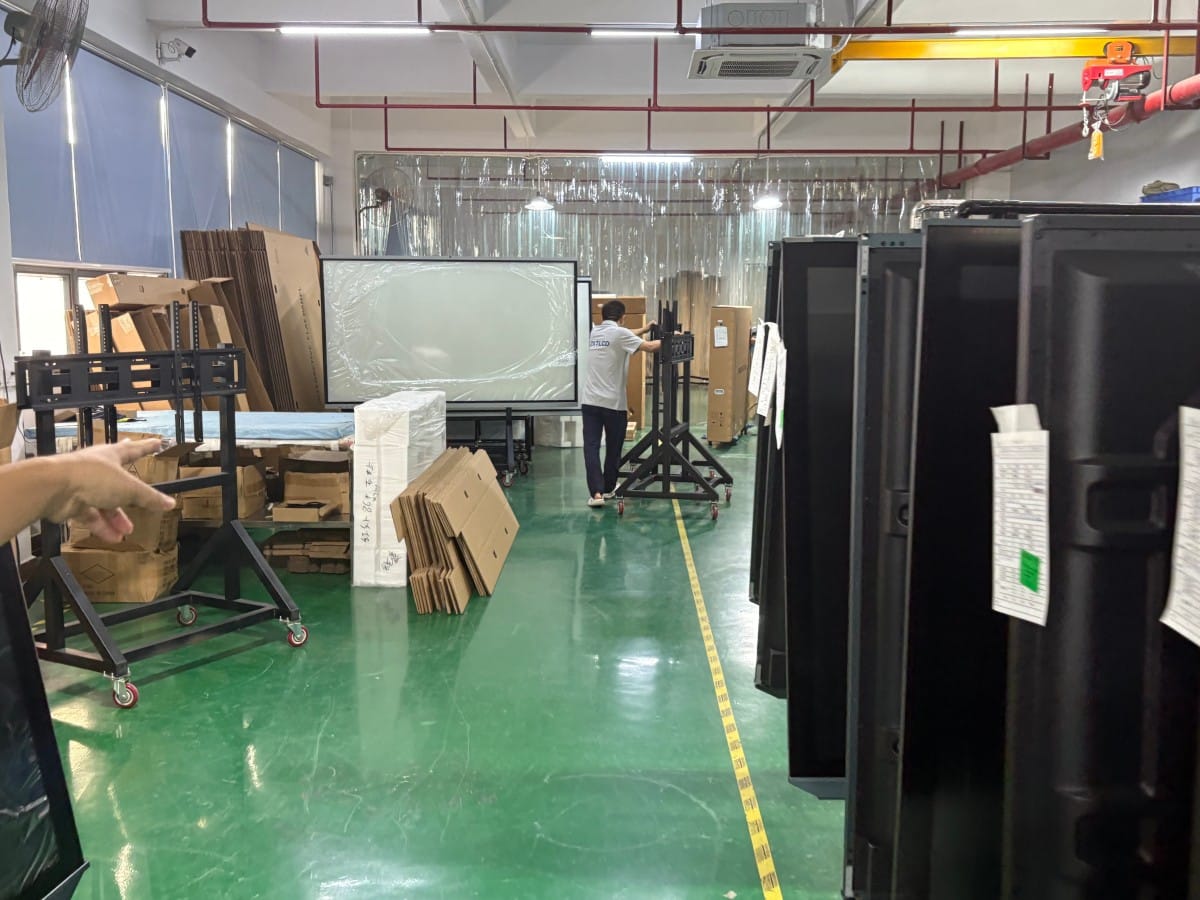
Wireless screen mirroring is the most frequently utilized feature in daily meetings. When specifying hardware, evaluate three criteria: universal compatibility across corporate laptops (Windows, macOS), smartphones (iOS, Android), and tablets; simple connectivity workflows (plug-and-play USB hardware dongles or driverless software protocols); and rock-solid transmission stability free of frame stutter, audio sync lag, or unexpected drops.
Test wireless casting across multiple employee devices under your corporate enterprise Wi-Fi network, including multi-screen split-view casting and touch-back laptop control.
Step 6: Remote Video Conferencing — Coordinate Hardware and Room Acoustics
If your teams conduct frequent hybrid meetings, evaluate video conferencing peripherals: camera field-of-view (FOV) and 4K optical clarity, integrated microphone beamforming pickup range and acoustic noise cancellation (AEC), speaker clarity, and certified compatibility with Zoom, Microsoft Teams, and Webex.
Integrated 8-meter microphone arrays perform admirably in small huddle spaces. In expansive boardrooms with dispersed seating, relying exclusively on onboard microphones results in hollow, echo-laden audio. Plan for external wireless tabletop expansion microphone pods to ensure complete vocal pickup across the room.
Step 7: Do Not Overlook Mounting Safety and After-Sales Support
Many organizations procure outstanding hardware only to encounter installation failures. Large commercial displays are heavy (often 40 to 90+ kg). Inspect wall substrate integrity: solid concrete and brick support heavy wall brackets securely, whereas hollow drywall partitions require internal reinforcement studs or heavy-duty mobile floor carts. Coordinate power outlets and concealed wall conduits prior to delivery.
Regarding after-sales service, formalize warranty duration, covered components, on-site technician dispatch turnaround times, and software maintenance commitments directly into purchase agreements.
Three Common Procurement Pitfalls to Avoid
Deciding Purely on Lowest Price: Abnormally cheap quotes often mask recycled consumer LCD glass, high-latency touch sensors, underpowered processors, or non-existent warranty support. Quantify what has been compromised before ordering.
Blindly Pursuing Massive Screens: Screen size must balance room dimensions and seating distances; over-sized displays in small rooms induce neck strain and poor ergonomics.
Valuing Gimmicks Over Core Usability: Lengthy feature checklists mean little if handwriting lags, casting drops, or video calls echo. Master the core meeting workflows first.
Frequently Asked Questions (FAQ)
What screen size is optimal for a small huddle room? 55 to 65 inches is typically ideal, ensuring comfortable sightlines and complete touch accessibility without dominating the room.
Is 4K resolution genuinely necessary for corporate meetings? Yes. 4K UHD is essential for rendering fine financial tables, engineering blueprints, and dense text with razor-sharp clarity at close viewing distances.
How do all-in-one displays differ from consumer smart TVs? All-in-one displays feature multi-point touch overlays, anti-glare commercial glass, digital whiteboard software, multi-device wireless casting, and commercial-grade 16/7 or 24/7 duty cycles, which consumer TVs lack.
Can organizations request on-site sample evaluation prior to purchase? Yes, reputable suppliers readily provide on-site evaluation units, allowing IT teams to test casting, handwriting, and video calls in real corporate environments.
Conclusion
Selecting the right conference all-in-one display is not about buying the most expensive hardware, but selecting the system best matched to your conference space and collaboration culture: size the screen to room distances, evaluate handwriting and casting firsthand, verify video call acoustics, and ensure professional mounting. This structured approach guarantees a successful, high-return deployment.
Explore Commercial Interactive Smart Boards & Conference Displays
If you are upgrading your conference room, training center, or collaborative workspace, explore our high-performance interactive flat panel models:
- 65 Inch Interactive Flat Panel for Classroom & Team Participation
- 75 Inch Smart Board for Meeting Presentations and Decisions
- 86 Inch Interactive Display Built Around the Complete Meeting Flow
Need a Customized Meeting Room Solution or Project Quote?
ZXTLCD delivers end-to-end interactive display engineering—from 55″ to 110″ 4K anti-glare touchscreens, integrated 4K ePTZ cameras, 8-array microphones, to dual Android/Windows OPS compute configurations.